
Before you start
You can edit the Job: you own it, you manage its owner, or you’re an Owner or Admin. The owner is the Owner field in the Job’s Details. Changing the order of its Consultants doesn’t change who owns it. To hand the Job over, pick someone else in Owner.Open a job
- By hand. On a Job in Briefing, select Start recruiting at the top. Hire says “<Job> is open”.
- On its own. Hire opens a Briefing Job when the first candidate moves past Long list, or when you first confirm its ideal candidate. Activity reads, for example, “Opened automatically: first candidate reached Short list”, with Undo. It happens once per Job.
Close or reopen a job
- Open the Job on its Overview tab.
- In Details, select Status.
- Pick Filled or Lost to close it, On hold to pause it, or Open to reopen it.
Find a job by status
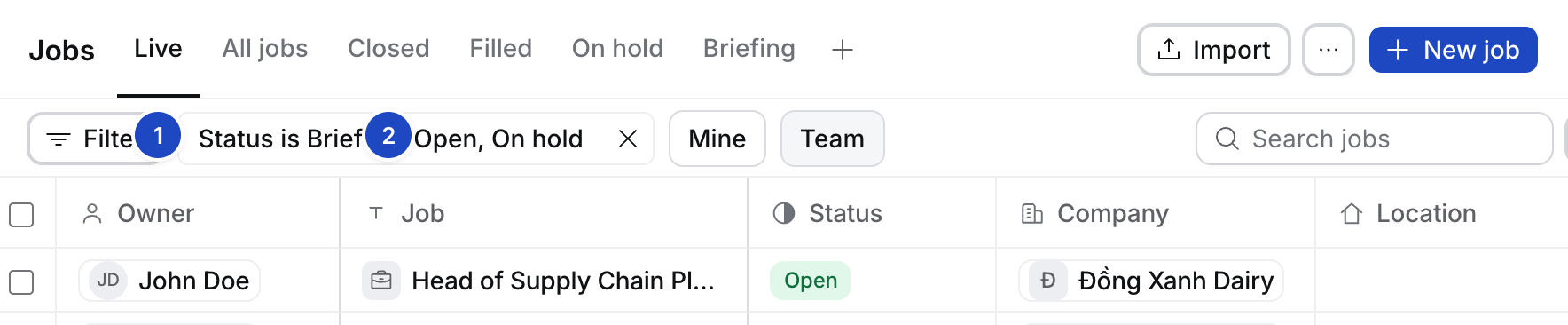
- Live. Jobs in Briefing, Open or On hold. Jobs opens here.
- Closed. Jobs that are Filled or Lost.
Troubleshooting
- The Status field doesn’t open. You can’t edit this Job. Ask its owner, their Manager or an Admin.
- Applications still arrive on a closed Job. Its Application inbox stays on until you switch it off. The inbox warns “This job isn’t Open”. See How to post a job to job boards.
- You want it gone, not closed. Select ⋯ › Archive job. An archived Job shows Restore.