
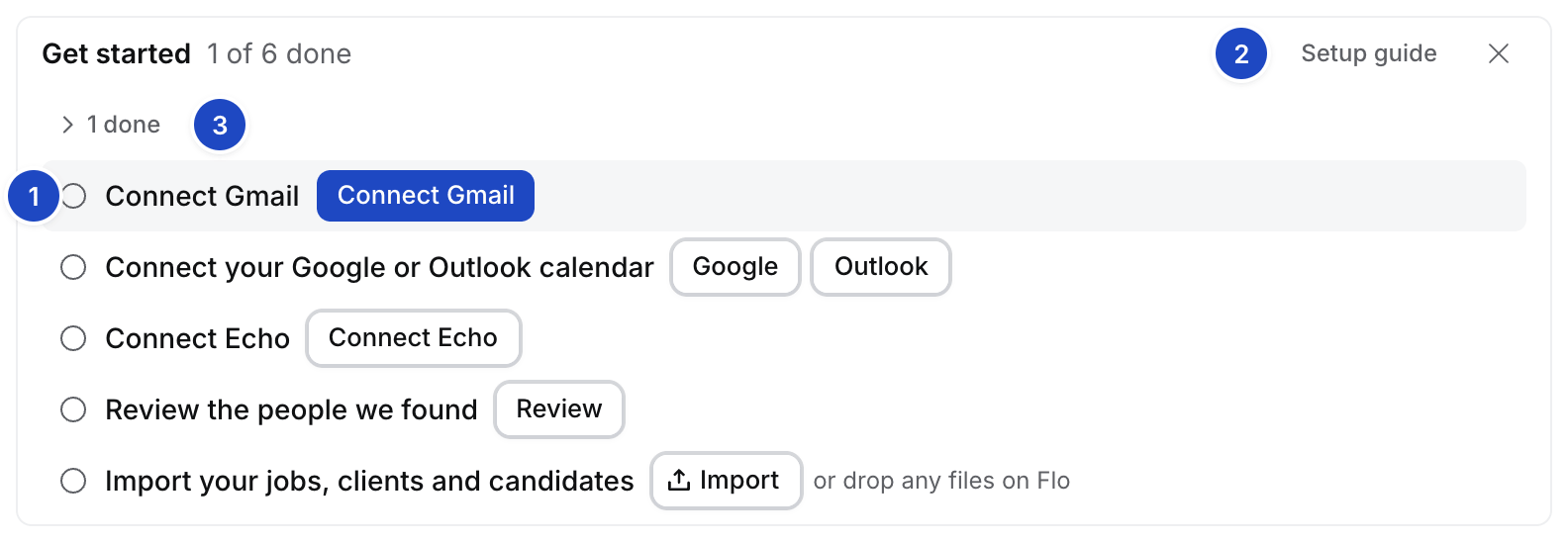
Get started in a new agency.
- Next row. The step to do now.
- Setup guide. Opens this page at that step.
- N done. The done rows, folded. Select it to show them, and Hide done to fold them again.
Connect Gmail
Select Connect Gmail. On the Inbox’s connect card, keep Contact creation on Sent and select Connect Gmail. Google’s screen names Composio, Hire’s mail provider. Done shows Connected · Open Inbox, or how far Hire has read your older mail.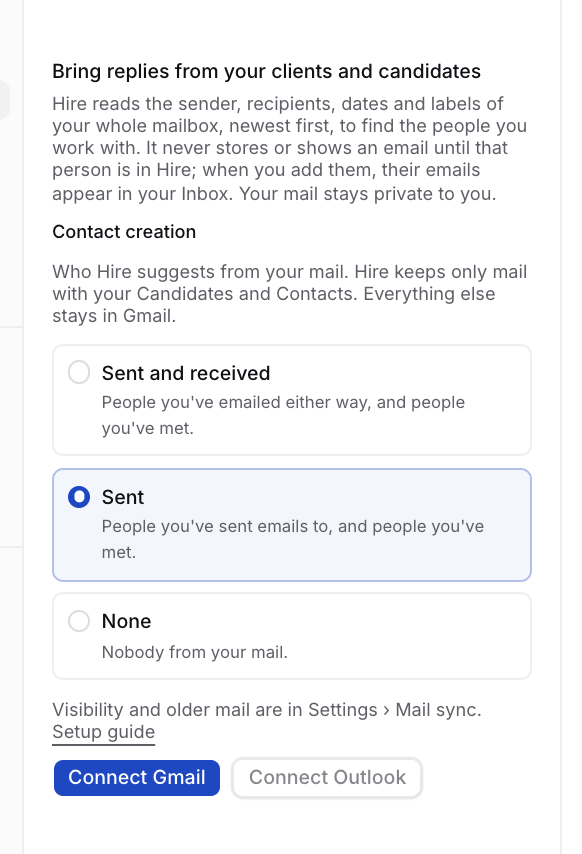
Connect your Google or Outlook calendar
Select Google or Outlook and approve. Your meetings link to your clients and candidates. Done shows Connected · Open Meetings.
Connect Echo
Select Connect Echo and approve. Recordings land on the meeting they came from. Done shows Connected · Open Meetings.
Review the people we found
While Hire reads your connections, the row says Finding people… with each source’s progress. Then it says Review 2 people we found and 2 people found · 6 not suggested: 4 newsletters, 1 your addresses, 1 colleagues · See all.
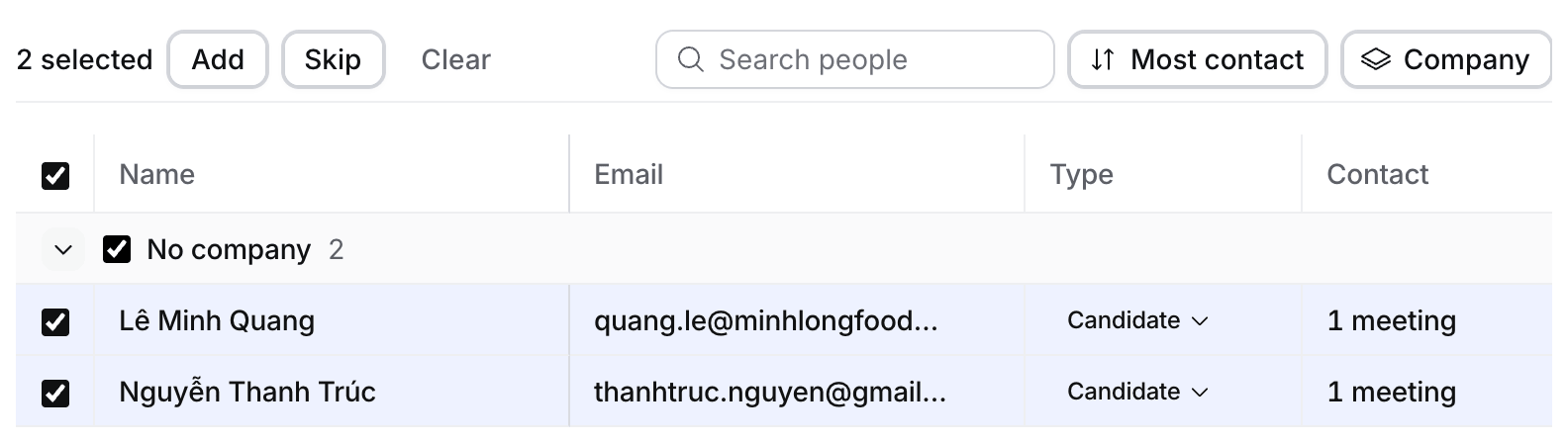
- Not suggested. People Hire left out: newsletters, automated senders, your own addresses and the like, the three biggest groups first. See all opens People we found › Hidden, where Suggest anyway brings one back.
- Review. Opens People we found: one table, grouped by company. Tick people, or a company’s box for everyone there, then select Add, Skip or Not a client above the table (how).
- 5 done. The rows you have done.
Import your jobs, clients and candidates
Select Import, then one of: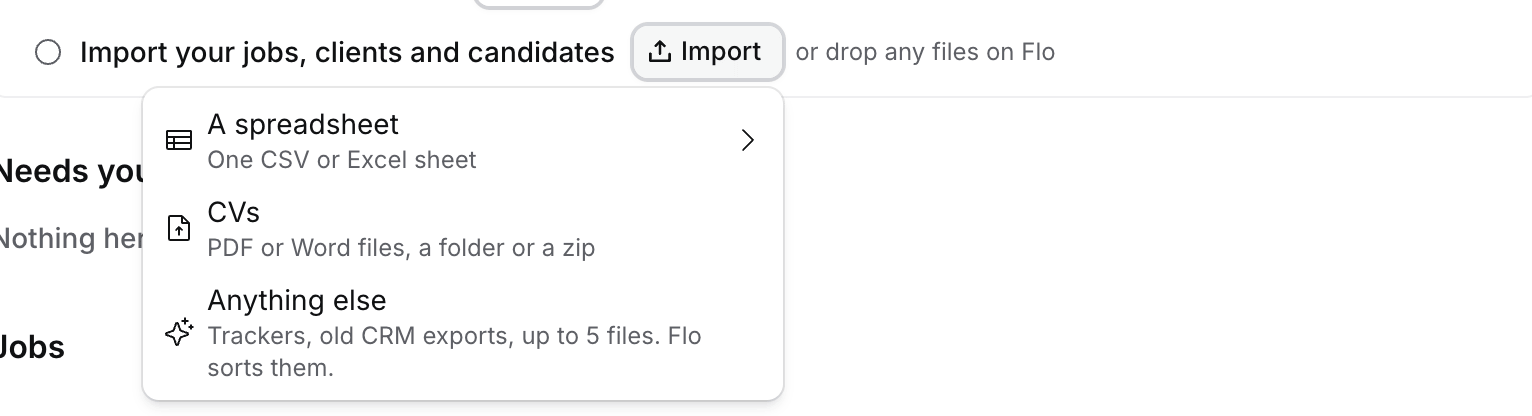
- A spreadsheet. One CSV or Excel sheet into Companies, Contacts or Candidates.
- CVs. PDF or Word files, a folder or a zip. Each CV becomes a candidate.
- Anything else. Trackers and old CRM exports, up to five files. Flo plans the import with you (Bring your people in).
Hire keeps mail only with people in Hire, and your mail stays private to you. See Where your data lives.
Next
- Your first job: from a JD or a briefing call to your first shortlist.
- A morning in Hire: Today, Needs you and the Morning brief.