
1
Start from an empty table
On an empty Jobs, Candidates, Companies or Contacts table, select Import a tracker or Import a spreadsheet, or drop the files.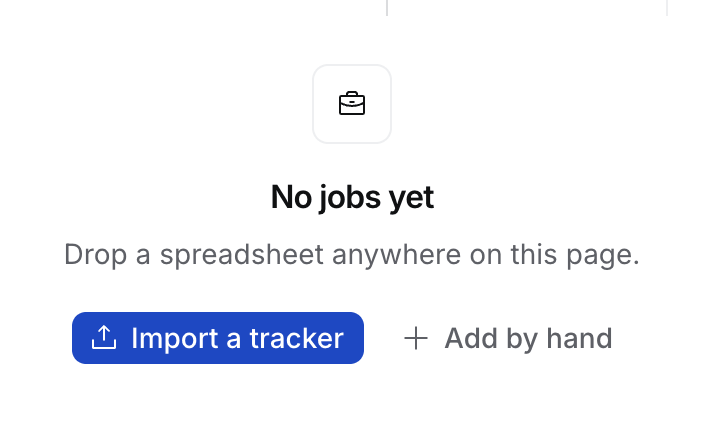
2
Say what the files are
Attach them in Flo (⌘K › Ask Flo), for example “my jobs board from Plane and our candidate list”.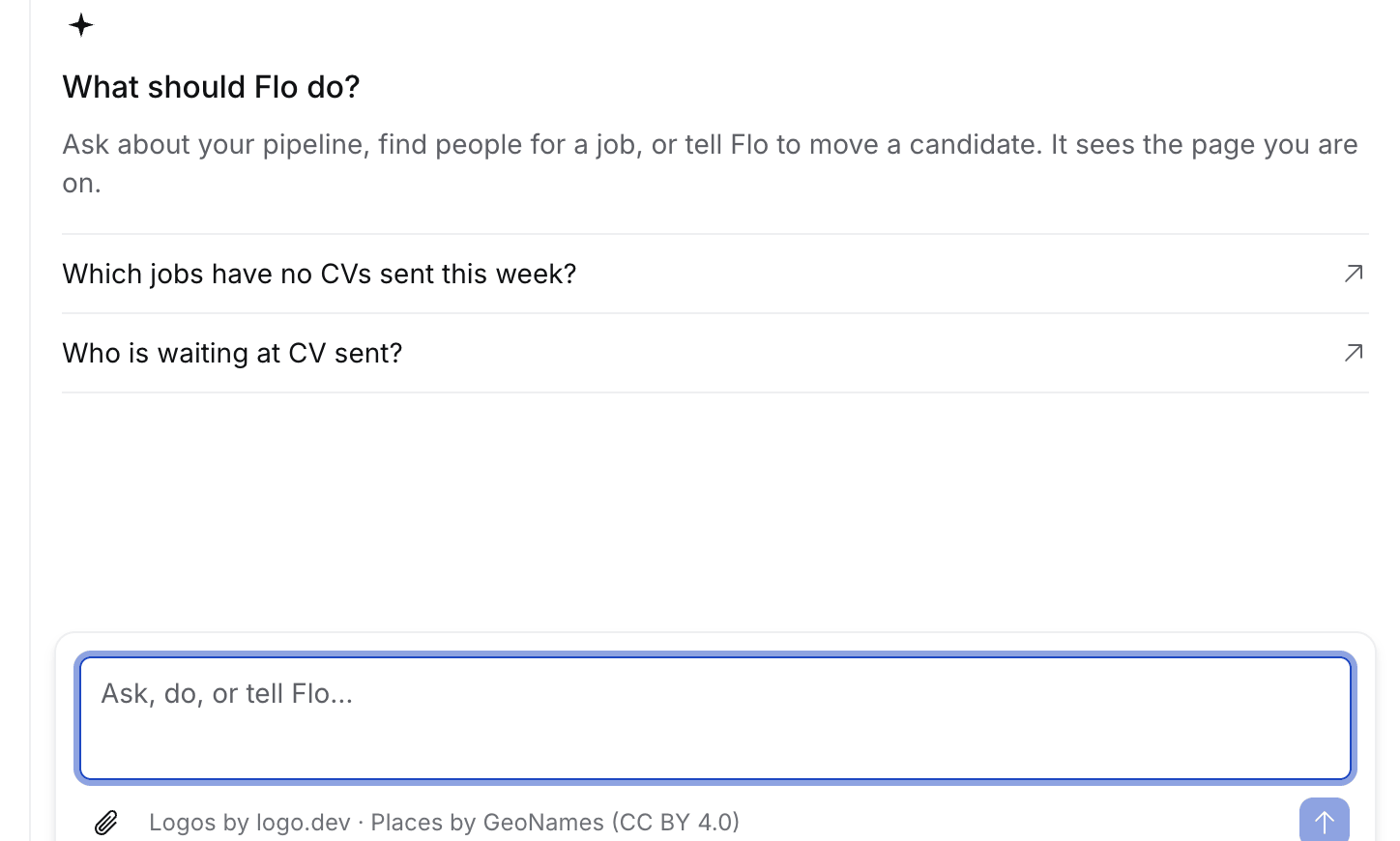
3
Approve the plan
Untick any row to leave it out, then select Approve. Open full plan shows it on its own page.
No screenshot of the plan card yet: it needs a live Flo turn with files, which the capture script doesn’t run.
What Flo reads
Flo creates Companies, Contacts, Jobs, Candidates and Applications at their real stages, then says what they lack. It still leaves out sensitive columns and colleagues, and never matches people by name.
A new person who may be someone you have is held, as in the spreadsheet import. The row says who, for example “looks like Thomas Nguyen”, and offers Link to existing, Create anyway or Skip. A held person is not added unless you choose. A later row with the same email, phone or LinkedIn is the same person and is held with them. Your choice covers both rows.
Where else to drop files
If something looks wrong
- A row was left out. A value didn’t read as its field’s type. The plan gives the reason.
- You closed the chat mid-import. It carries on when you open the chat again.
- Wrong import. Select Undo import on the plan card or a record’s Activity within 14 days. Only the importer, Owners and Admins see it.