
Select rows
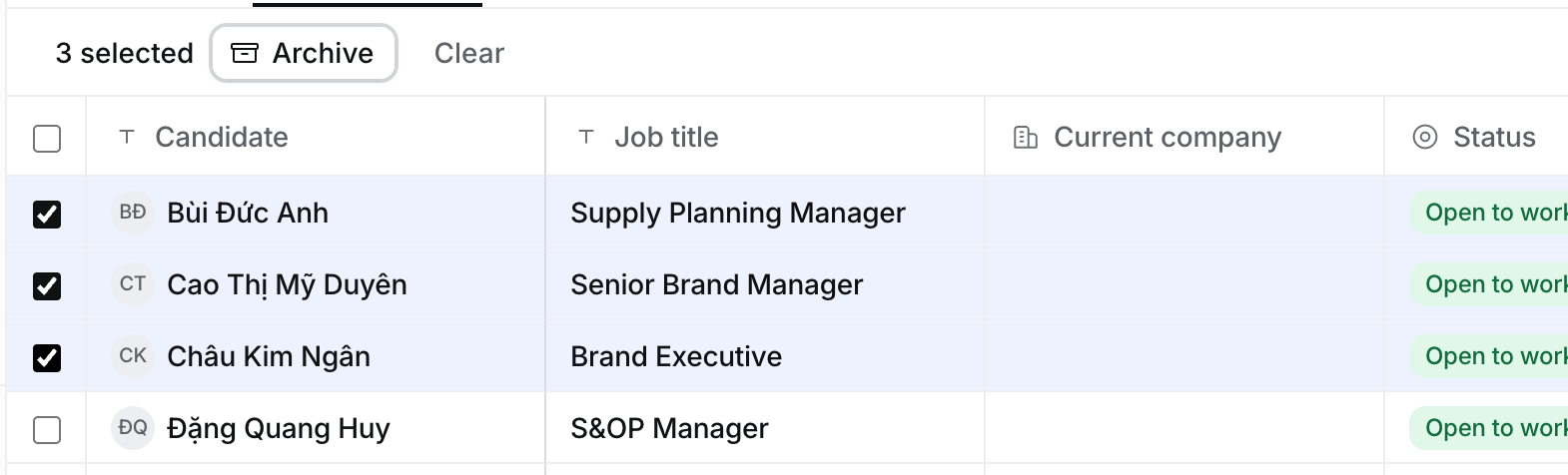
- Tick a row’s box. Hold Shift and tick another to select every row between them.
- Press ⇧ Space to select the row you’re on, or ⌘ A to select every row.
- Press Esc, or select Clear, to start again.
What you can do
Find and restore archived records
Candidates, Contacts, Companies and Jobs end their view tabs with Archived. It lists what’s archived, with the day and the person who archived each one.- Select Archived.
- Select Restore on a row, or tick several rows and select Restore in the bar.
- Select a view tab, such as Companies, to go back.
Reject several applicants
- Open the Job’s Pipeline tab, then To review.
- Tick the applicants and select Reject.
- Under Why reject these N?, tick the reasons, such as Too junior or Missing a must-have, or write your own under Other reason.
- Confirm. They move to Rejected, where Undo brings them back today.
Troubleshooting
- Merge instead of archiving? The company looks like another one you have. See How to find and merge duplicates.
- No checkboxes. Today, Placements and the board layout don’t take a selection. Switch the Pipeline to list layout.
- “These applications share no stage.” The selected applications are on Jobs with different rounds. Select applications from Jobs with the same rounds.
- No Add to job in the bar. Add a candidate to a Job from their own page.