
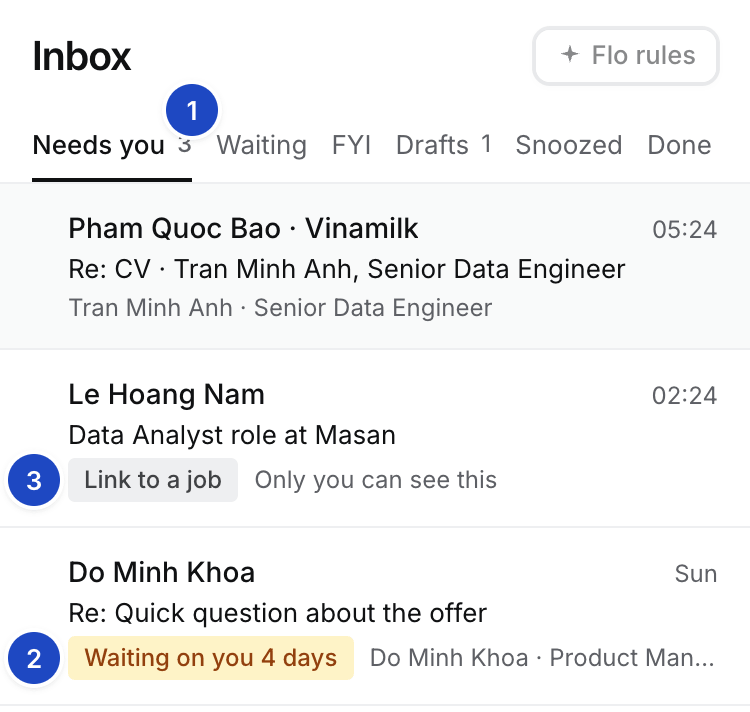
- Views. Where each conversation stands.
- Reason. Why the row is here, such as Client replied to CV out or Draft ready.
- Link to a job. A private conversation waiting for its Job.
1
Reply
Open a conversation. Edit Flo’s draft or select Draft with Flo, then Send and remind me. Nothing sends until you select it.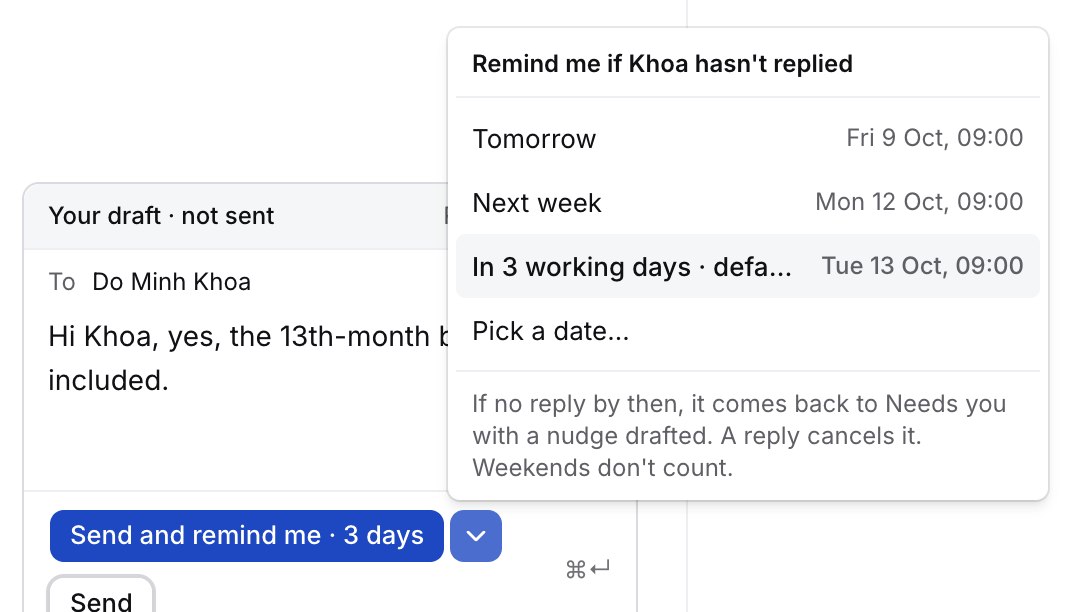
2
Link it to a job
Under Not linked yet, select Link next to the Job or application. Everyone on that Job can then read the thread.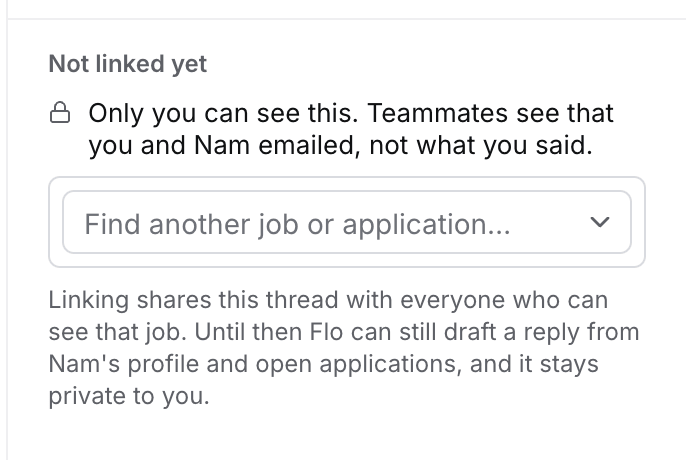
3
Clear it
Select Done (E) or Snooze (H). To delete it from Hire, select More (⋯) › Remove from Hire. Gmail keeps every email.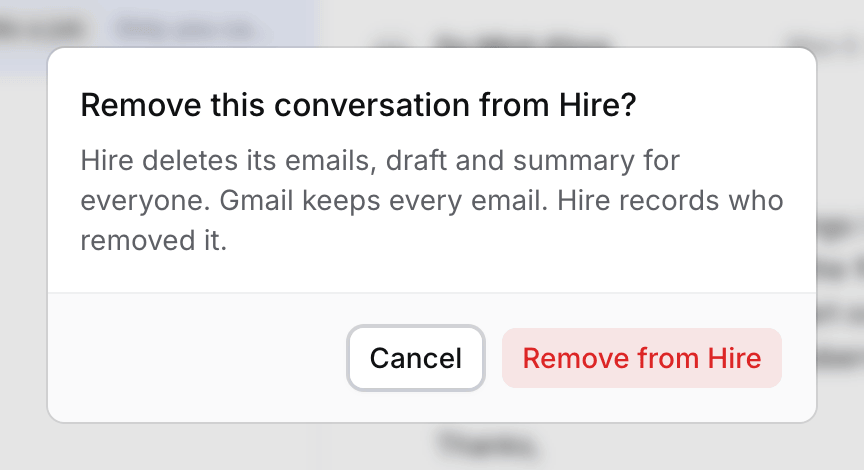
The views
A view opens at the click. If Hire is still fetching it, the list shows grey placeholder rows until the conversations arrive. A conversation you mark done or snooze shows in its new view straight away.
Flo sorts new mail into these views. See Sort mail with Mail sorting.
Attachments
Each attachment shows its type, name and size under its email. Select it to preview a PDF, picture or Word file, or the arrow to download it. On a thread with a candidate, a PDF or Word file’s preview adds Save to Ana’s files and Use as CV, which also has Flo fill their empty fields. Both have Undo. Hire opens attachments from your Gmail when you select them and keeps no copy until you save one. Only you can open them, even when a teammate can read the thread. Logos and pictures pasted into an email show without Show images.Keyboard shortcuts
If something looks wrong
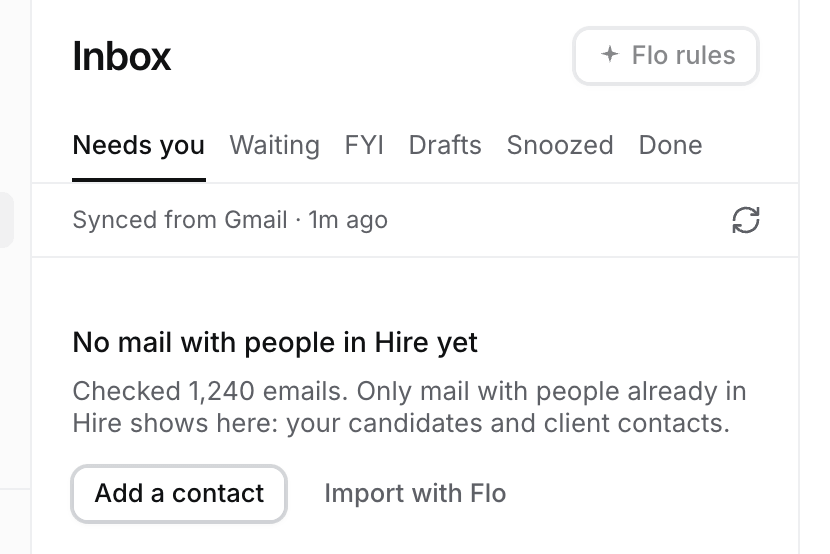
- “No mail with people in Hire yet.” Approve people on People we found.
- “Bringing in mail with people you added.” Their threads are on the way. The line counts down.
- A reply is missing. Select Sync now (the circling arrows). New mail usually arrives within a minute.
- Hire won’t send. The person or their company is marked Do not contact. The message says which.
- Images are hidden. Select Show images. Senders use them to see when you open an email.
- Gmail sent it but the reminder failed. Set the reminder again from the conversation.