> ## Documentation Index
> Fetch the complete documentation index at: https://docs.ascern.io/llms.txt
> Use this file to discover all available pages before exploring further.
# Your first day as the Owner
> From an empty agency to your first Target list and your first Job, in the order Hire needs it.
In this tutorial you take a new agency from nothing to work in progress: your settings, your Gmail, calendar and Echo, the people they find, the rest of your records, your team, your first Target list and your first Job. Each step links to the page with the details. Plan on an hour, plus however long your spreadsheets take to tidy.
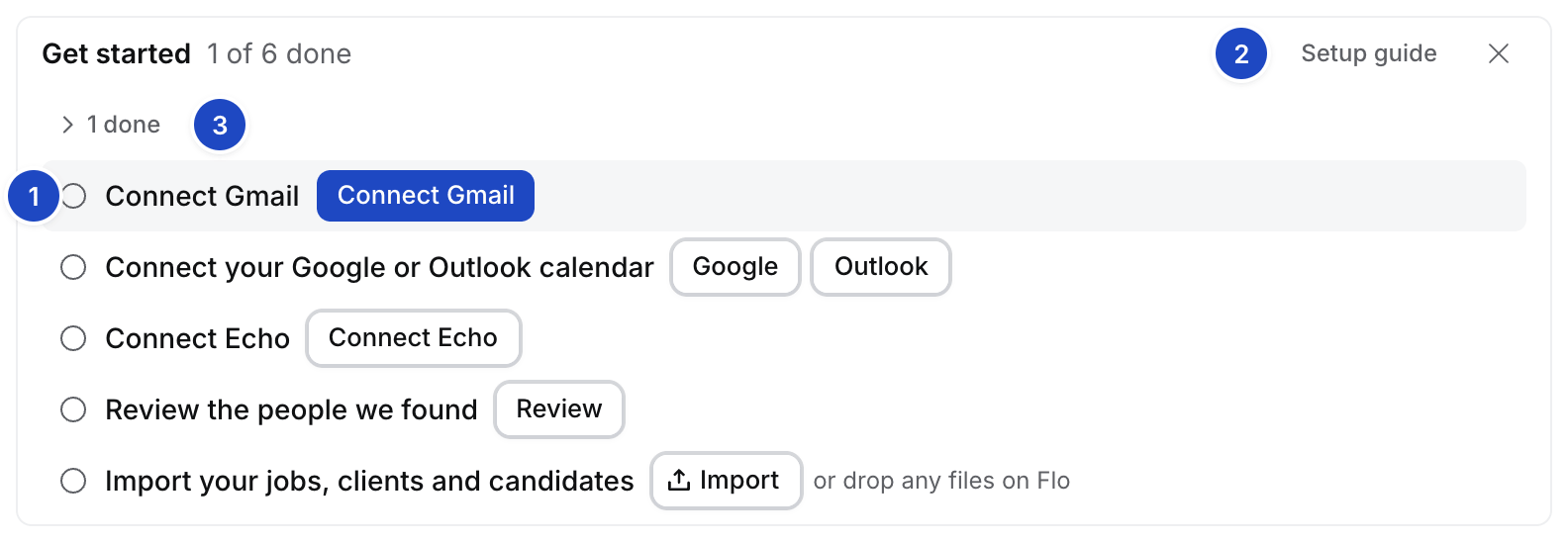
Today's **Get started** checklist lists the same steps. Connecting Gmail, your calendar and Echo finds your clients and candidates for you to review, so you connect first and import what is still missing.
## Before you start
* Skillflo has created your agency and sent you the Owner's invitation.
* You have your current jobs, clients, contacts and candidates as files: a spreadsheet, an export from your old CRM or a folder of CVs. A few of each is enough to start.
* Read [How Hire works](/guides/explanation/how-hire-works) for the method behind these steps.
## 1. Sign in and join
1. Open the invitation email and follow its link.
2. Sign in with the address the invitation was sent to, either with its Google or Microsoft account or with **Continue with email** and the code Hire sends. An invitation works only for that address.
3. Type **Your name**, which is how your team sees you, then select **Join** with your agency's name.
Hire opens on Today. In a new agency the **Get started** card lists six rows above empty Needs you, Jobs and Live pipeline boards.
 ## 2. Set the agency's defaults
Open **Settings › General** and set the time zone, reporting currency, date and number formats and phone country. Check **Agency email domains**, so your colleagues never turn up as candidates. Then turn on two-step sign-in in **Settings › Security**, and add your logo and layouts in **Settings › Templates**.
See [Set up your agency](/guides/tutorials/set-up-your-agency).
## 3. Connect Gmail, your calendar and Echo, and review the people Hire finds
Follow [Get started](/guides/get-started): connect Gmail, then your calendar, then Echo. The fourth row then says **Review N people we found**, and how many Hire left out as newsletters, automated senders or your own addresses. Select **Review**, tick the clients and candidates on **People we found** and select **Add**.
## 4. Bring the rest of your work in
Add what your connections didn't bring. Select **Import** on **Get started**, then **Anything else**, and pick up to five files. For one sheet choose **A spreadsheet**, for CVs choose **CVs**. Flo reads them as one plan: Jobs, Companies, Contacts and Candidates. You can also drop the files on that step, or select **drop any files on Flo** to pick them. Or open **Jobs**, **Companies**, **Contacts** or **Candidates**. Each empty table says what to drop on it.
## 2. Set the agency's defaults
Open **Settings › General** and set the time zone, reporting currency, date and number formats and phone country. Check **Agency email domains**, so your colleagues never turn up as candidates. Then turn on two-step sign-in in **Settings › Security**, and add your logo and layouts in **Settings › Templates**.
See [Set up your agency](/guides/tutorials/set-up-your-agency).
## 3. Connect Gmail, your calendar and Echo, and review the people Hire finds
Follow [Get started](/guides/get-started): connect Gmail, then your calendar, then Echo. The fourth row then says **Review N people we found**, and how many Hire left out as newsletters, automated senders or your own addresses. Select **Review**, tick the clients and candidates on **People we found** and select **Add**.
## 4. Bring the rest of your work in
Add what your connections didn't bring. Select **Import** on **Get started**, then **Anything else**, and pick up to five files. For one sheet choose **A spreadsheet**, for CVs choose **CVs**. Flo reads them as one plan: Jobs, Companies, Contacts and Candidates. You can also drop the files on that step, or select **drop any files on Flo** to pick them. Or open **Jobs**, **Companies**, **Contacts** or **Candidates**. Each empty table says what to drop on it.
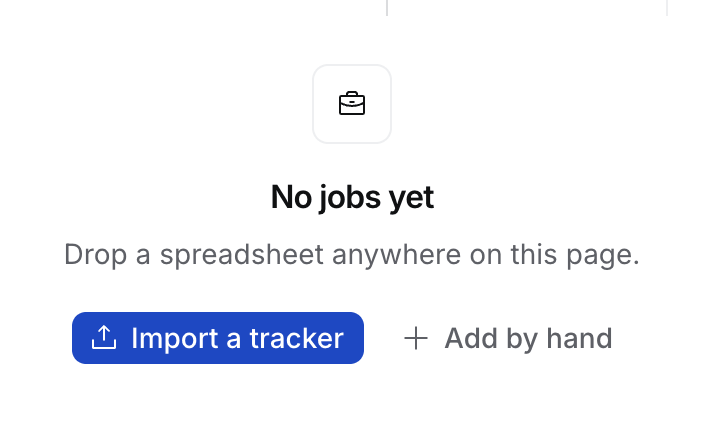 * **An export from your old CRM, or a job tracker.** Select **Import a tracker** on Jobs, or **Import** › **Anything else** on Today. You approve Flo's plan once. See [Import your data with Flo](/guides/how-to/import-with-flo).
* **A contacts or candidates spreadsheet.** Select **Import a spreadsheet**. See [Import contacts](/guides/how-to/import-contacts) and [Import candidates](/guides/how-to/import-candidates).
* **A folder of CVs.** Select **Upload CVs** on Candidates, or drop a zip. Each CV becomes a candidate.
* **One job at a time.** Select **Add by hand** on Jobs.
You can undo an import for 14 days. See [Bring your people in](/guides/tutorials/bring-your-people-in).
## 5. Invite your team
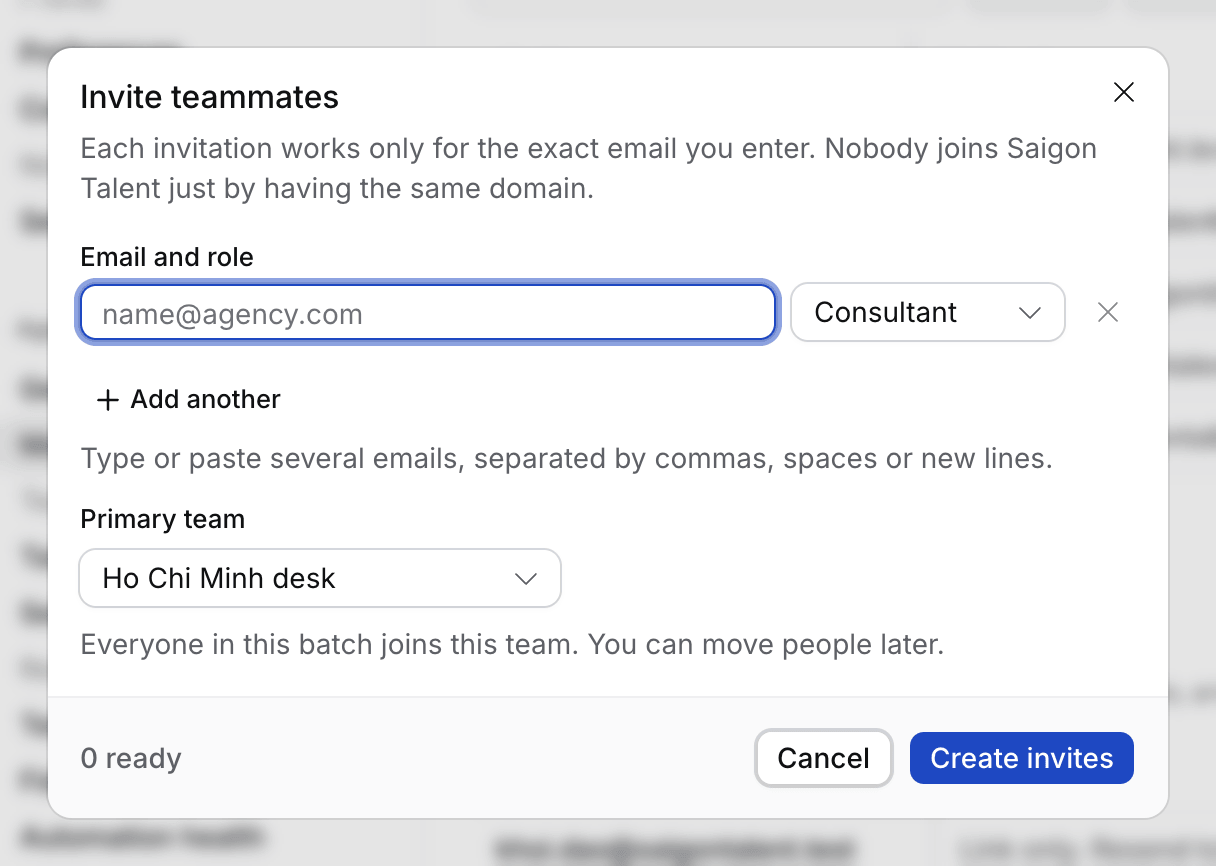
The last step is **Invite your team**: select **Invite teammates**. Type their work emails, pick a role and a primary team, then select **Create invites**. Each consultant connects their own calendar, Echo and Gmail. Your jobs and clients are already there for them.
* **An export from your old CRM, or a job tracker.** Select **Import a tracker** on Jobs, or **Import** › **Anything else** on Today. You approve Flo's plan once. See [Import your data with Flo](/guides/how-to/import-with-flo).
* **A contacts or candidates spreadsheet.** Select **Import a spreadsheet**. See [Import contacts](/guides/how-to/import-contacts) and [Import candidates](/guides/how-to/import-candidates).
* **A folder of CVs.** Select **Upload CVs** on Candidates, or drop a zip. Each CV becomes a candidate.
* **One job at a time.** Select **Add by hand** on Jobs.
You can undo an import for 14 days. See [Bring your people in](/guides/tutorials/bring-your-people-in).
## 5. Invite your team
The last step is **Invite your team**: select **Invite teammates**. Type their work emails, pick a role and a primary team, then select **Create invites**. Each consultant connects their own calendar, Echo and Gmail. Your jobs and clients are already there for them.
 Owners and Admins run settings and members. Managers also edit the Jobs and Applications of their team. Consultants work their own. Everyone sees every record in the agency. Send your consultants [Join your agency](/guides/tutorials/join-your-agency).
## 6. Set your BD targets
Open **Settings › Targets** and type **10** under **BD calls a day** on the Agency's row. Add **Candidate interviews a day**, **CVs sent a week** and **Placements a month** if you track them. From tomorrow, each consultant's Today shows the day's count.
See [How to set a daily BD calls target](/guides/how-to/set-a-daily-bd-target).
## 7. Build your first Target list
Pick the industry you want to win jobs in. Open **Ask Flo** and say, for example, "Build my target list for pharmaceuticals in Vietnam". Flo's card lists each company with its **Tier** and why Flo chose it. Untick any you don't want, then select **Approve**. The targets show on **Companies › Targets**, Tier 1 first.
See [How to build a target list with Flo](/guides/how-to/build-a-target-list-with-flo) and [How to track a target company](/guides/how-to/track-a-target-company).
## 8. Start your first Job
When a client briefs you, record the call with Echo. Flo proposes the Job from the transcript, and you approve it. A client who sends a JD instead: press ⌘ K, choose **New job** and drop the JD on its first step.
See [Your first job](/guides/tutorials/first-job).
## What you did
Your agency has its settings, your Gmail, calendar and Echo, your existing work, a team with invitations, daily targets, a tiered Target list and a first Job. Today's **Get started** checklist is gone. From tomorrow, start each day with [A morning in Hire](/guides/tutorials/a-morning-in-hire).
## Next
Brief, search, review, send CVs and follow the client's rounds.
This documentation is built and hosted on [Mintlify](https://mintlify.com), a developer documentation platform.
Owners and Admins run settings and members. Managers also edit the Jobs and Applications of their team. Consultants work their own. Everyone sees every record in the agency. Send your consultants [Join your agency](/guides/tutorials/join-your-agency).
## 6. Set your BD targets
Open **Settings › Targets** and type **10** under **BD calls a day** on the Agency's row. Add **Candidate interviews a day**, **CVs sent a week** and **Placements a month** if you track them. From tomorrow, each consultant's Today shows the day's count.
See [How to set a daily BD calls target](/guides/how-to/set-a-daily-bd-target).
## 7. Build your first Target list
Pick the industry you want to win jobs in. Open **Ask Flo** and say, for example, "Build my target list for pharmaceuticals in Vietnam". Flo's card lists each company with its **Tier** and why Flo chose it. Untick any you don't want, then select **Approve**. The targets show on **Companies › Targets**, Tier 1 first.
See [How to build a target list with Flo](/guides/how-to/build-a-target-list-with-flo) and [How to track a target company](/guides/how-to/track-a-target-company).
## 8. Start your first Job
When a client briefs you, record the call with Echo. Flo proposes the Job from the transcript, and you approve it. A client who sends a JD instead: press ⌘ K, choose **New job** and drop the JD on its first step.
See [Your first job](/guides/tutorials/first-job).
## What you did
Your agency has its settings, your Gmail, calendar and Echo, your existing work, a team with invitations, daily targets, a tiered Target list and a first Job. Today's **Get started** checklist is gone. From tomorrow, start each day with [A morning in Hire](/guides/tutorials/a-morning-in-hire).
## Next
Brief, search, review, send CVs and follow the client's rounds.
This documentation is built and hosted on [Mintlify](https://mintlify.com), a developer documentation platform.