> ## Documentation Index
> Fetch the complete documentation index at: https://docs.ascern.io/llms.txt
> Use this file to discover all available pages before exploring further.
# Your first job, from briefing to placement
> From the client's briefing to a calibrated search, CVs out, the client's rounds and the placement.
In this tutorial you set up one Job end to end, the way John set up Đồng Xanh Dairy's Brand Manager, Dairy: you add the client's JD, confirm the ideal candidate, run a calibration search, review who applied, send CVs, follow the client's rounds and make the placement. It takes about 20 minutes. [How Hire works](/guides/explanation/how-hire-works) explains the method behind each step.
## Before you start
* You can create Jobs (Owner, Admin, Manager or Consultant).
* You have the client's JD as a file, an email or your notes, or you have recorded the briefing call with Echo.
## 1. Create the Job
Press ⌘K, choose **New job**, type the title, such as Brand Manager, Dairy, and pick the client Company. Hire opens the Job on its guided setup. **Go to job page** is always at the top right if you want the tabs instead.
If you recorded the client's briefing with Echo, you don't need to create it. Flo reads the transcript and proposes the Job, with its salary, fee, rounds and must-haves. Approve the card in **Tasks › To review**, and the Job opens in **Briefing**. See [How to create a job from a client briefing call](/guides/how-to/create-a-job-from-a-briefing-call).
## 2. Job description
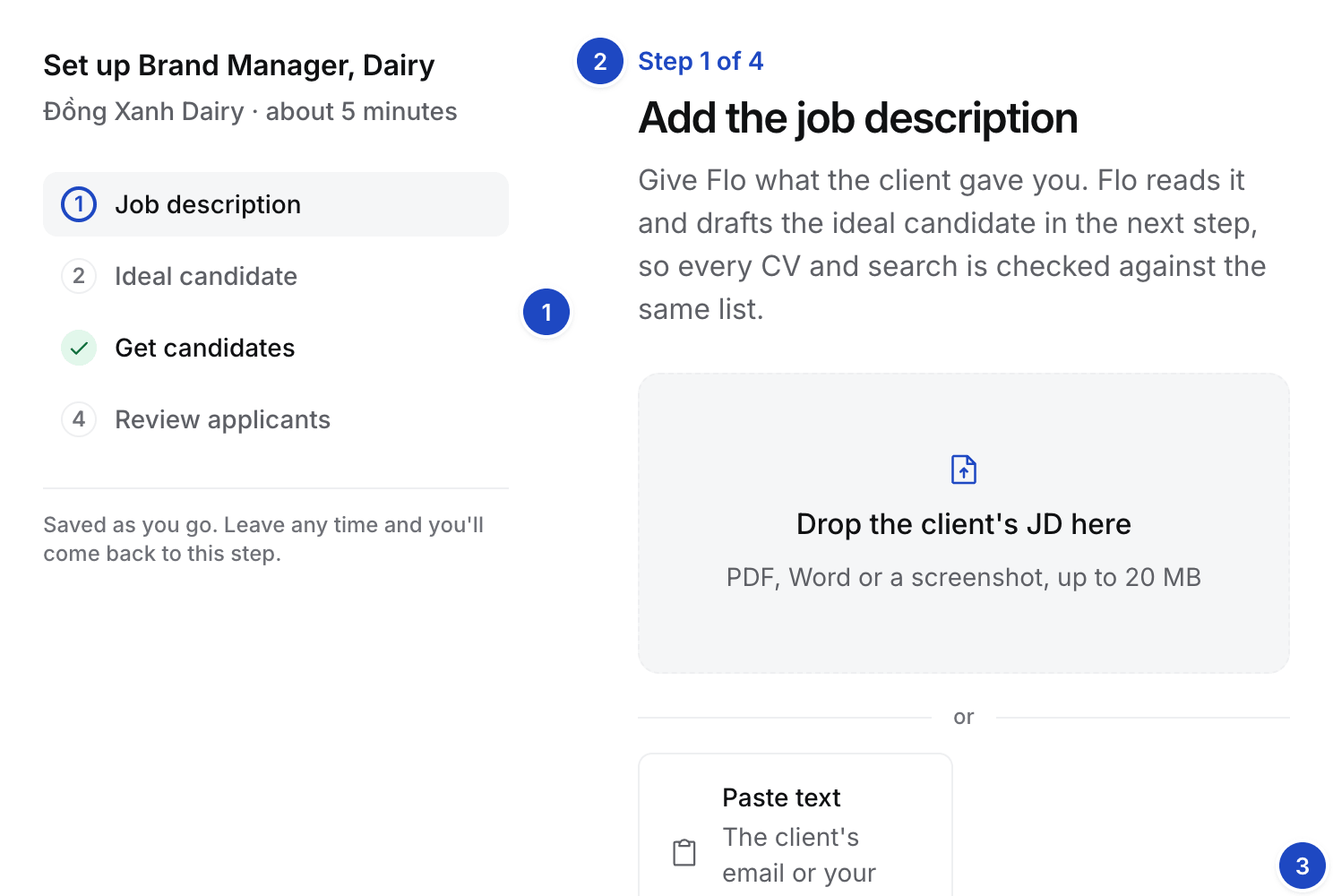 1. **The stepper.** Job description, Ideal candidate, Get candidates and Review applicants. A step ticks when the Job holds what it needs, not when you click.
2. **The current step.** One column, one primary button.
3. **Skip for now.** Skipped steps stay in the stepper so you can come back.
Drop the client's JD, or select **Paste text**. Flo reads it and drafts the ideal candidate. You can leave the page while it works.
## 3. Ideal candidate
1. **The stepper.** Job description, Ideal candidate, Get candidates and Review applicants. A step ticks when the Job holds what it needs, not when you click.
2. **The current step.** One column, one primary button.
3. **Skip for now.** Skipped steps stay in the stepper so you can come back.
Drop the client's JD, or select **Paste text**. Flo reads it and drafts the ideal candidate. You can leave the page while it works.
## 3. Ideal candidate
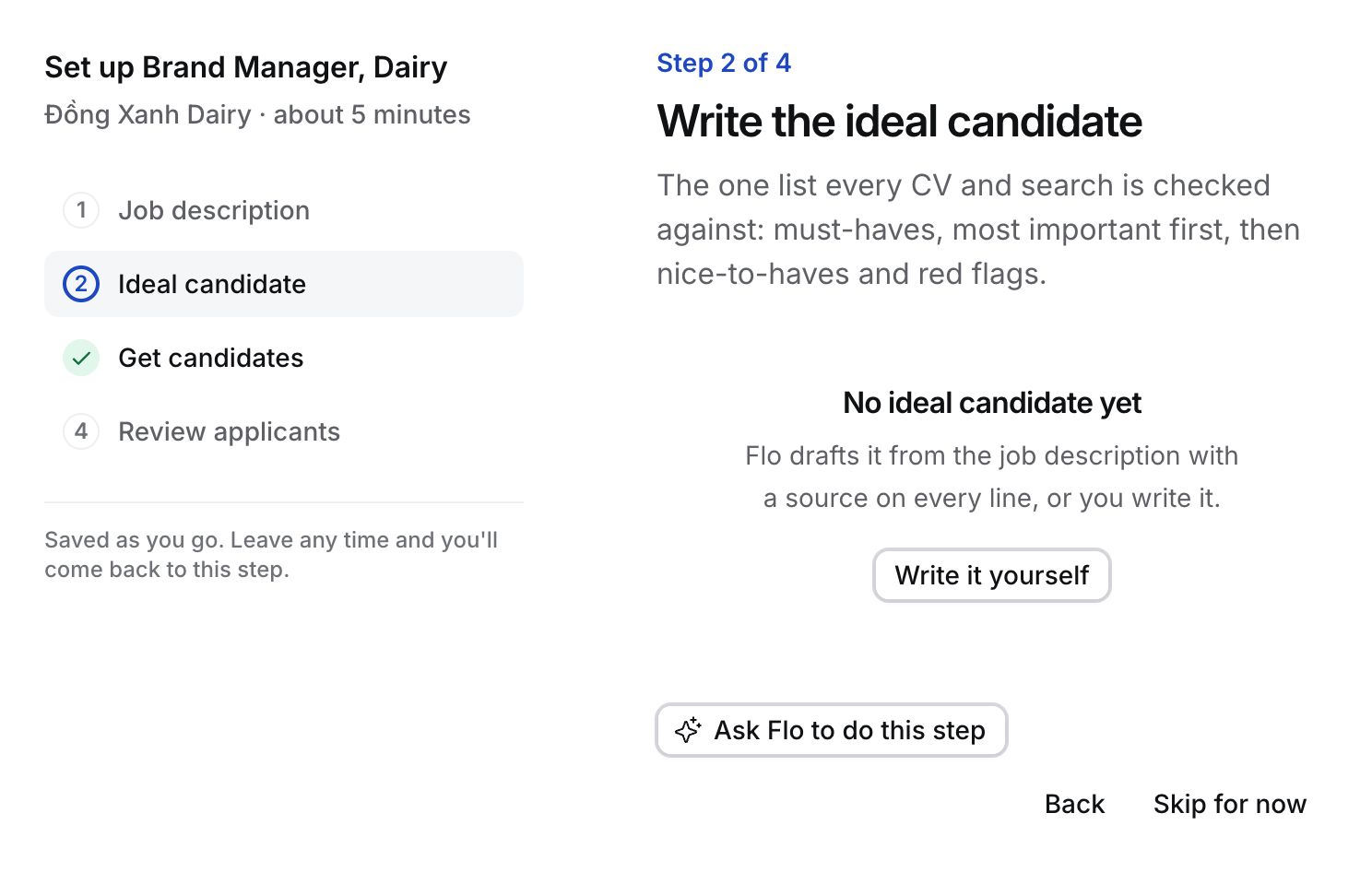 Check Flo's draft: 3 to 8 ranked must-haves, nice-to-haves and red flags, each with its source in the JD. Select **Edit** to fix a line, then select **Confirm and start CV review**. Confirming also switches CV review on for this Job. See [How to confirm the ideal candidate](/guides/how-to/confirm-the-ideal-candidate).
## 4. Get candidates
Check Flo's draft: 3 to 8 ranked must-haves, nice-to-haves and red flags, each with its source in the JD. Select **Edit** to fix a line, then select **Confirm and start CV review**. Confirming also switches CV review on for this Job. See [How to confirm the ideal candidate](/guides/how-to/confirm-the-ideal-candidate).
## 4. Get candidates
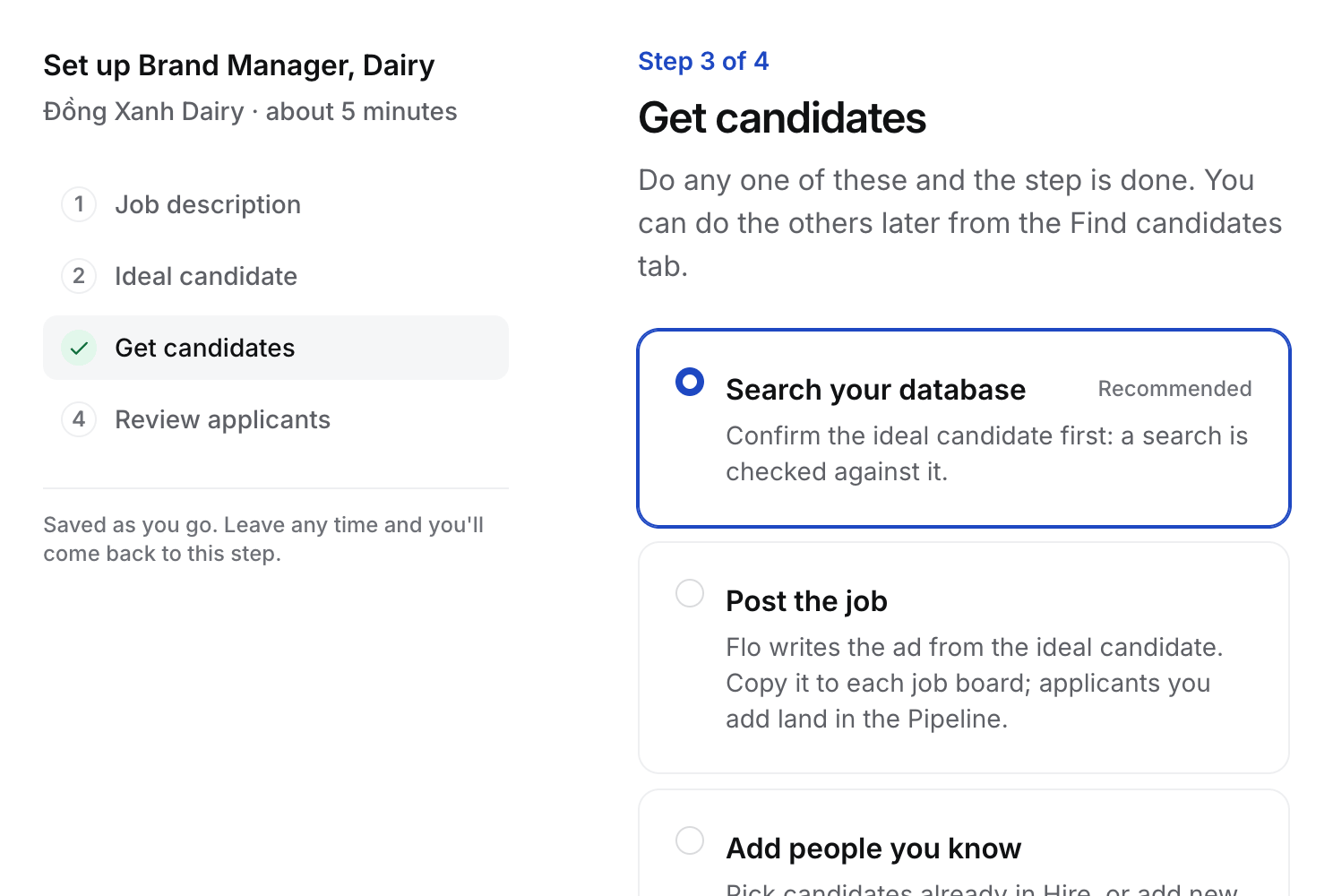 Choose one way. Any one finishes the step.
* **Search your database** looks through your agency's candidates against the ideal candidate. Start here: it is your calibration search. Select **Start a search**, check the search Flo drafted from the ideal candidate, then select **Looks good, find people**.
* **Post the job** gives you Flo's advert to copy. Then open the Job's **Pipeline** tab, select **Application inbox** and paste the address for each board into that board's advert, so CVs arrive on the Job by themselves. See [How to post a job to job boards](/guides/how-to/post-to-job-boards).
* **Add people you know** adds candidates already in Hire, or new ones with their CV.
## 5. Calibrate on your first search
Your first search opens on the Job's **Find candidates** tab, under **To review**. Each person shows Flo's word for each must-have and how many they meet.
1. Walk the list with J and K.
2. Press Y, or select **Keep on Long list**, for someone worth a call. Keep needs no reason.
3. Press N, or select **Skip**, for a bad profile, and tick why: **Too senior**, **Too junior**, **Job hopping**, **Wrong location** or another reason. Flo uses it for the next search.
4. After five decisions with a reason, Flo proposes a change to the ideal candidate from your reasons. Until then the toolbar counts down, such as "3 more decisions and Flo can refine the search". Confirm or discard the change. **Refine ideal candidate** asks Flo at any time.
5. Select **Find more people** for the next, wider search. **Kept** and **Skipped** keep every decision.
## 6. Review applicants
Choose one way. Any one finishes the step.
* **Search your database** looks through your agency's candidates against the ideal candidate. Start here: it is your calibration search. Select **Start a search**, check the search Flo drafted from the ideal candidate, then select **Looks good, find people**.
* **Post the job** gives you Flo's advert to copy. Then open the Job's **Pipeline** tab, select **Application inbox** and paste the address for each board into that board's advert, so CVs arrive on the Job by themselves. See [How to post a job to job boards](/guides/how-to/post-to-job-boards).
* **Add people you know** adds candidates already in Hire, or new ones with their CV.
## 5. Calibrate on your first search
Your first search opens on the Job's **Find candidates** tab, under **To review**. Each person shows Flo's word for each must-have and how many they meet.
1. Walk the list with J and K.
2. Press Y, or select **Keep on Long list**, for someone worth a call. Keep needs no reason.
3. Press N, or select **Skip**, for a bad profile, and tick why: **Too senior**, **Too junior**, **Job hopping**, **Wrong location** or another reason. Flo uses it for the next search.
4. After five decisions with a reason, Flo proposes a change to the ideal candidate from your reasons. Until then the toolbar counts down, such as "3 more decisions and Flo can refine the search". Confirm or discard the change. **Refine ideal candidate** asks Flo at any time.
5. Select **Find more people** for the next, wider search. **Kept** and **Skipped** keep every decision.
## 6. Review applicants
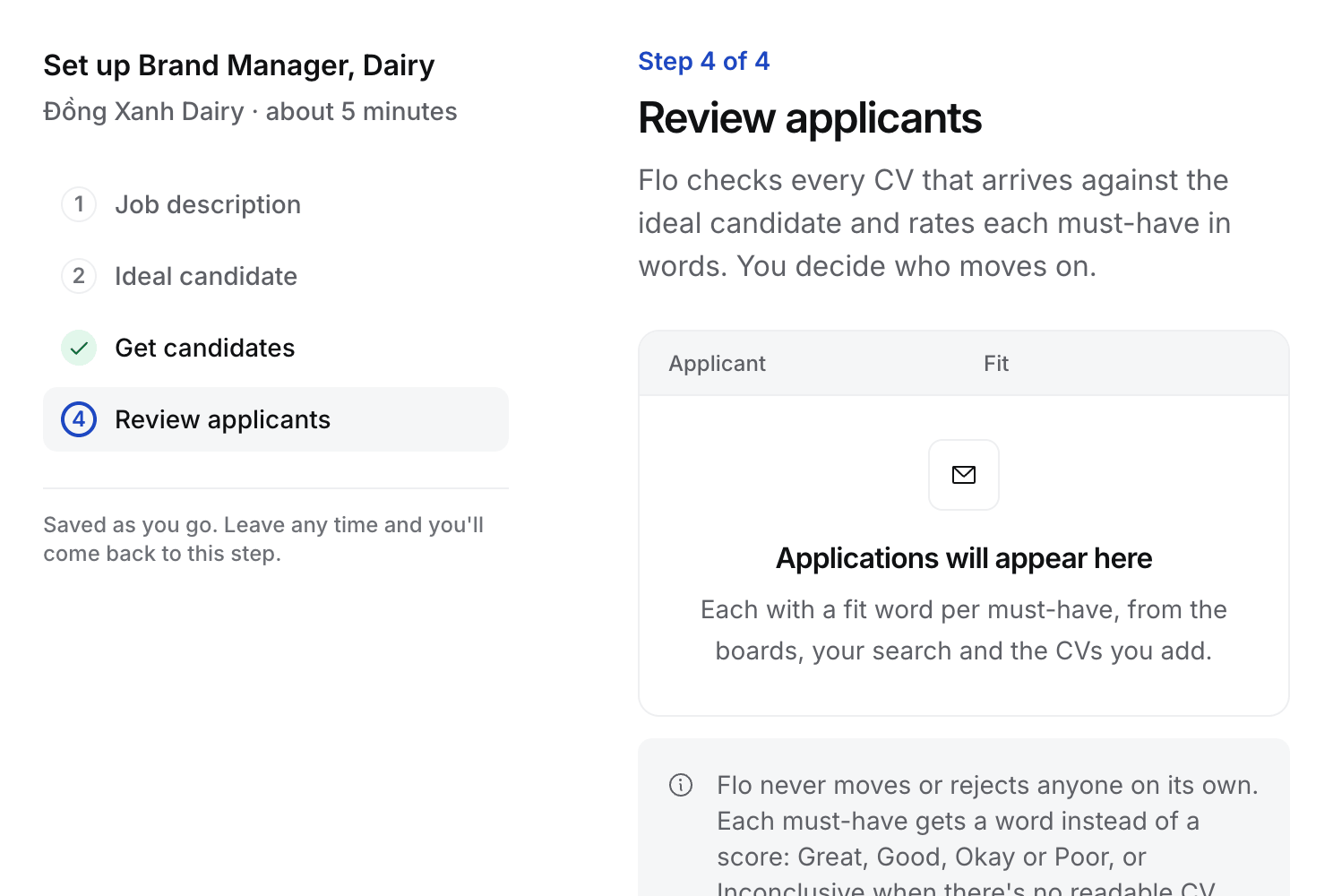 Select **Turn on CV review**. Each CV that arrives is checked against the ideal candidate, one word per must-have. Setup ends on "Your job is live", and the Job opens on its tabs from then on.
When applications arrive, the Overview shows **Next: N applications to review**. Open it, then work the list with J, K, Y and N. See [How to review applicants](/guides/how-to/review-applicants).
## 7. Send CVs
Select **Turn on CV review**. Each CV that arrives is checked against the ideal candidate, one word per must-have. Setup ends on "Your job is live", and the Job opens on its tabs from then on.
When applications arrive, the Overview shows **Next: N applications to review**. Open it, then work the list with J, K, Y and N. See [How to review applicants](/guides/how-to/review-applicants).
## 7. Send CVs
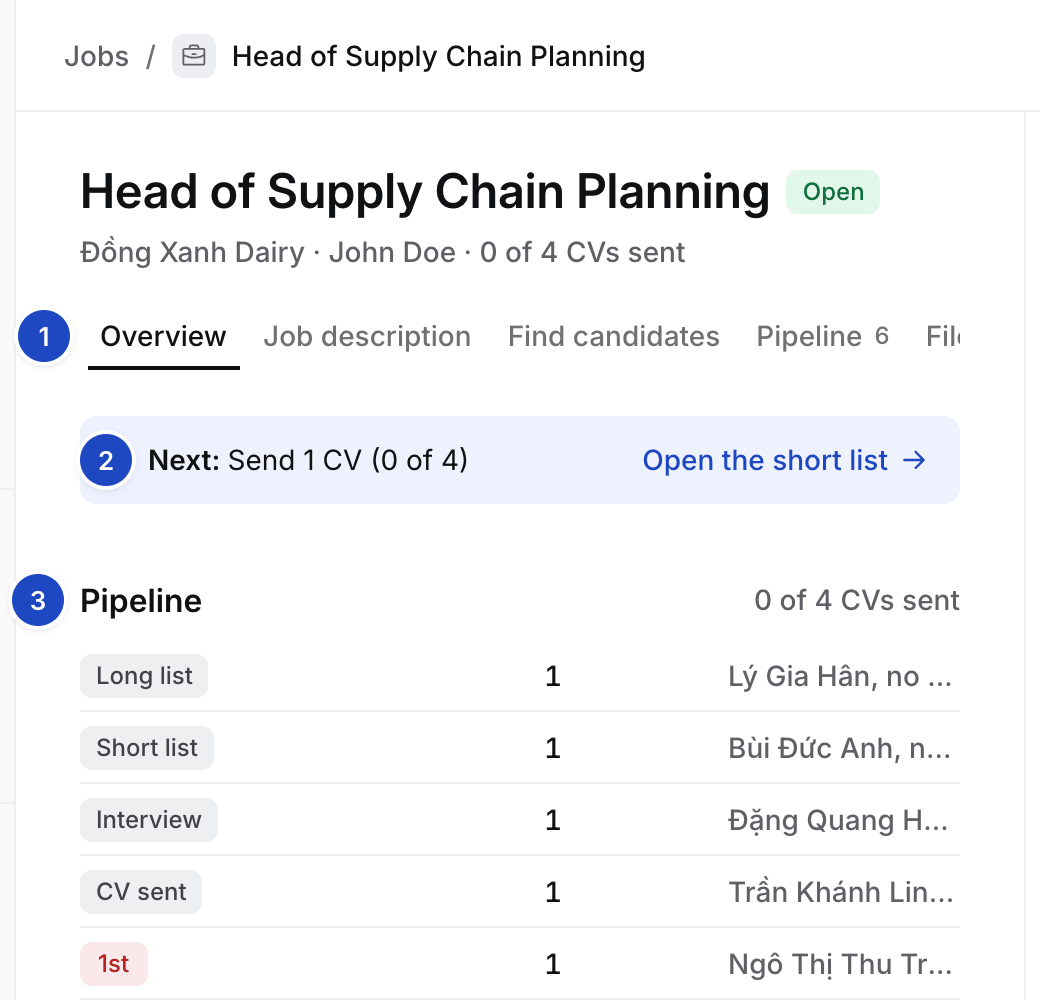 1. **Tabs.** Overview, Job description, Find candidates, Pipeline, Files and Activity.
2. **Next.** The one thing waiting, such as "Send 1 CV (0 of 4)", with a link straight to it.
3. **Pipeline.** How many people sit at each stage, and who moved last.
Progressed applicants move to Long list. Screen them, then move the ones you will put forward to Short list on the Pipeline board. Before each screening call, the meeting brief proposes the questions to ask. See [How to prep with the meeting brief](/guides/how-to/prep-with-the-meeting-brief).
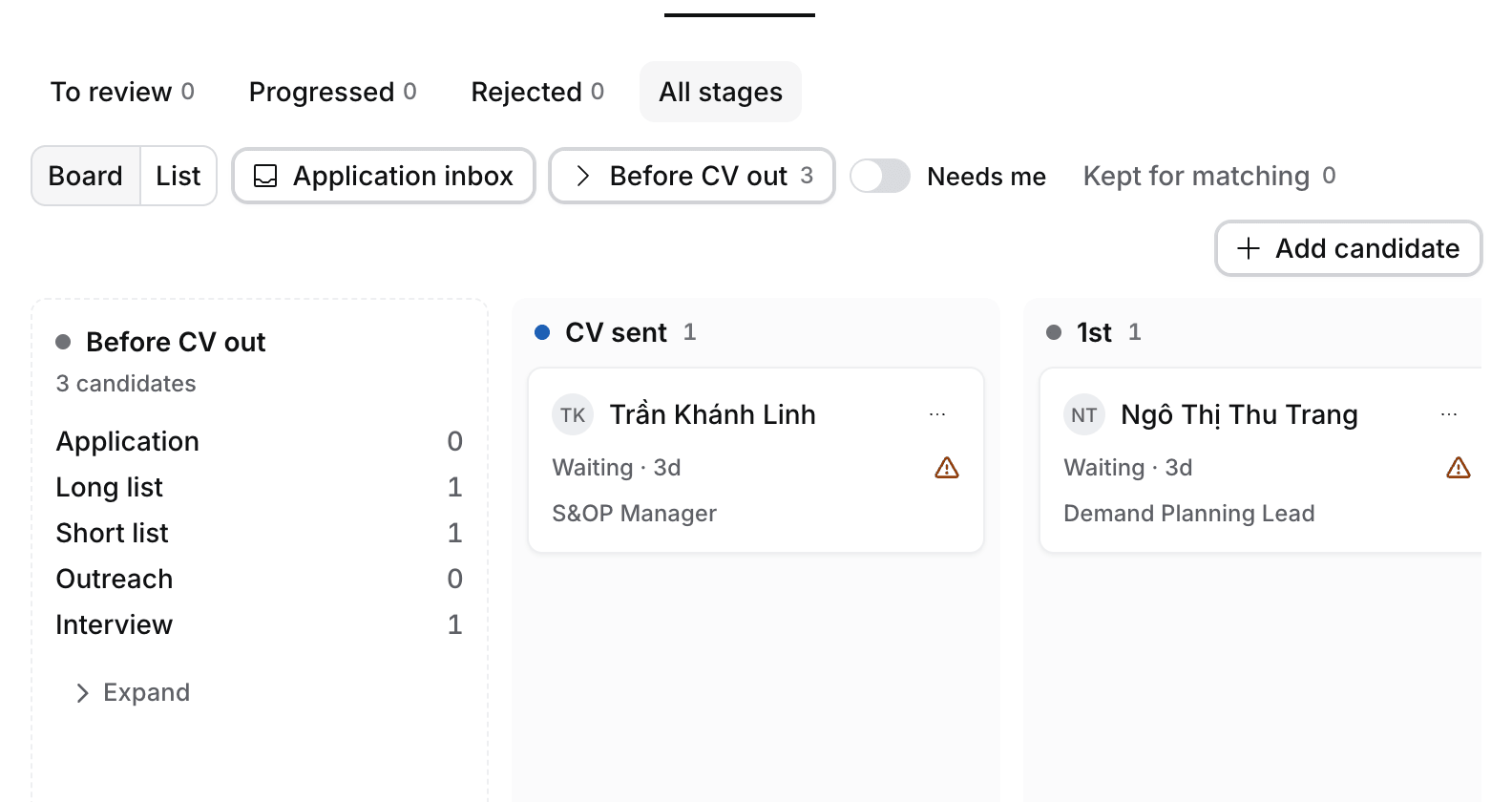
Then select **CV out** on the Job. Flo picks who is ready, formats each CV in your house style and drafts one email per candidate. Send each email, then select **Mark as sent**. Approving moves each candidate to **CV sent** and adds a Task to chase the client. The banner counts it: "Send 3 CVs (1 of 9)". See [How to send a CV to a client](/guides/how-to/send-a-cv-to-a-client).
1. **Tabs.** Overview, Job description, Find candidates, Pipeline, Files and Activity.
2. **Next.** The one thing waiting, such as "Send 1 CV (0 of 4)", with a link straight to it.
3. **Pipeline.** How many people sit at each stage, and who moved last.
Progressed applicants move to Long list. Screen them, then move the ones you will put forward to Short list on the Pipeline board. Before each screening call, the meeting brief proposes the questions to ask. See [How to prep with the meeting brief](/guides/how-to/prep-with-the-meeting-brief).
Then select **CV out** on the Job. Flo picks who is ready, formats each CV in your house style and drafts one email per candidate. Send each email, then select **Mark as sent**. Approving moves each candidate to **CV sent** and adds a Task to chase the client. The banner counts it: "Send 3 CVs (1 of 9)". See [How to send a CV to a client](/guides/how-to/send-a-cv-to-a-client).
 ## 8. Follow the client's rounds
When the client wants to meet someone, log it with ⌘E, for example "Client said yes to Ánh, 1st round Tuesday 15:00". Flo proposes moving the application to that round and booking the CCM, with a prep Task the day before and a keep-warm Task the day after. **CCM** in the sidebar lists everyone who is with a client, across every Job. See [How to follow candidates at the client on CCM](/guides/how-to/track-interviews-on-ccm) and [How to log client feedback](/guides/how-to/log-client-feedback).
## 9. Make the placement
When the client makes an offer, move the candidate to **Offer**. When they accept, move them to **Placed**. Flo proposes the placement on a card, with the start date, the guarantee and your fee. Approve it, and Hire adds your invoice and check-in tasks from its dates. See [Manage a placement](/guides/how-to/manage-a-placement).
## What you did
You turned a JD into a confirmed ideal candidate, calibrated it on a first search, reviewed applicants by must-have, sent CVs, followed the client's rounds and placed someone. Flo moved nobody. Every keep, skip, progress and reject was yours.
This documentation is built and hosted on [Mintlify](https://mintlify.com), a developer documentation platform.
## 8. Follow the client's rounds
When the client wants to meet someone, log it with ⌘E, for example "Client said yes to Ánh, 1st round Tuesday 15:00". Flo proposes moving the application to that round and booking the CCM, with a prep Task the day before and a keep-warm Task the day after. **CCM** in the sidebar lists everyone who is with a client, across every Job. See [How to follow candidates at the client on CCM](/guides/how-to/track-interviews-on-ccm) and [How to log client feedback](/guides/how-to/log-client-feedback).
## 9. Make the placement
When the client makes an offer, move the candidate to **Offer**. When they accept, move them to **Placed**. Flo proposes the placement on a card, with the start date, the guarantee and your fee. Approve it, and Hire adds your invoice and check-in tasks from its dates. See [Manage a placement](/guides/how-to/manage-a-placement).
## What you did
You turned a JD into a confirmed ideal candidate, calibrated it on a first search, reviewed applicants by must-have, sent CVs, followed the client's rounds and placed someone. Flo moved nobody. Every keep, skip, progress and reject was yours.
This documentation is built and hosted on [Mintlify](https://mintlify.com), a developer documentation platform.