> ## Documentation Index
> Fetch the complete documentation index at: https://docs.ascern.io/llms.txt
> Use this file to discover all available pages before exploring further.
# A morning in Hire
> What Today shows a working agency, and the five things a recruiter does each morning.
Hire opens on **Today**. In this tutorial you walk through a normal morning at Saigon Talent: what needs you, the mail to answer, the calls to prepare, the notes to file and the BD calls to make. It takes about 10 minutes. New to Hire? Start with [Your first day](/guides/tutorials/your-first-day).
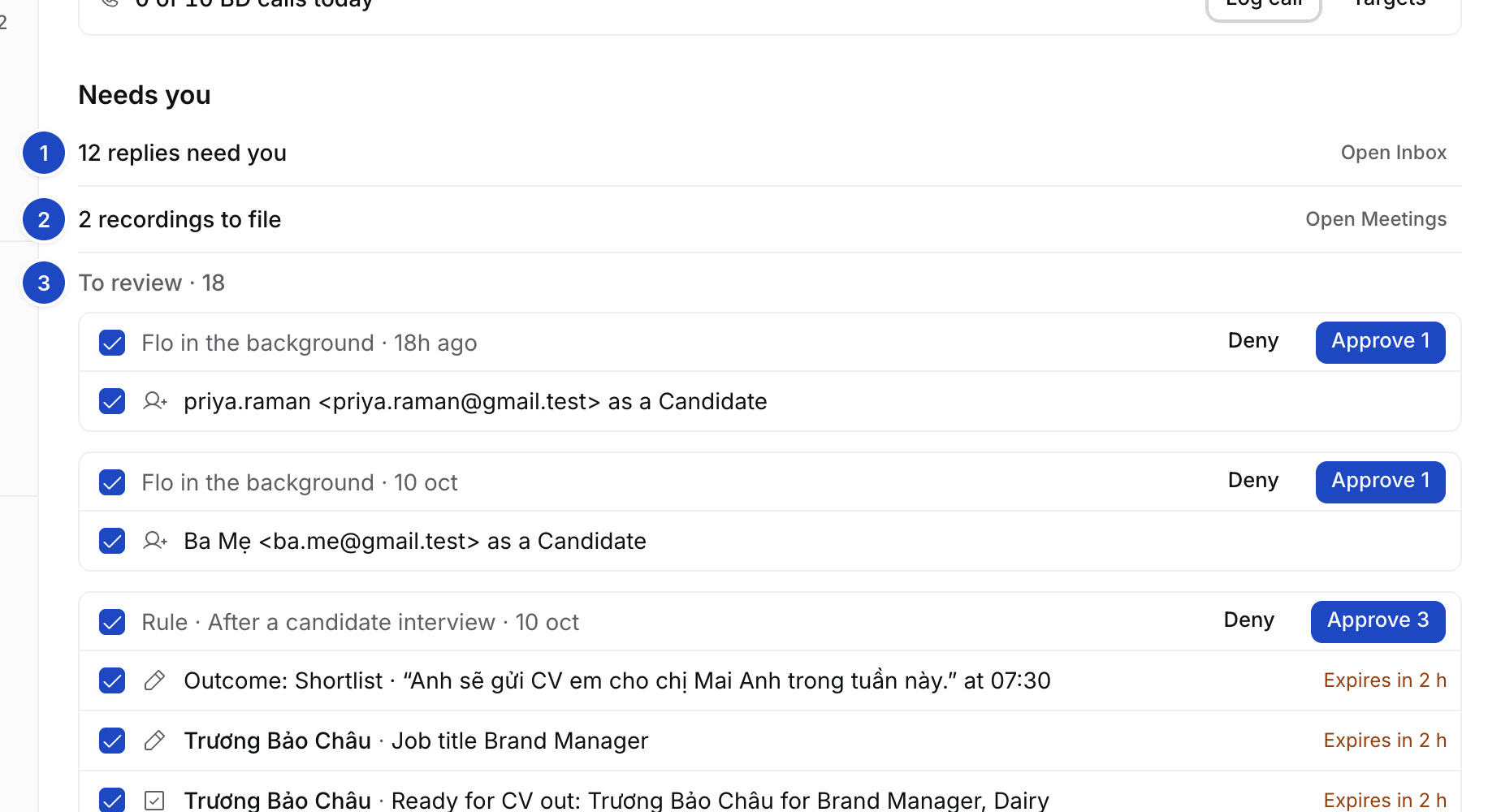 1. **Replies.** Conversations where someone is waiting on you.
2. **Recordings to file.** Echo calls with no calendar event yet.
3. **To review.** The changes Flo proposes, waiting for your approval.
Until you're set up, the **Get started** checklist above Needs you shows what Hire still needs: Gmail, your calendar, Echo, the people Hire found, your work and, for the Owner, your team. See [Get started](/guides/get-started).
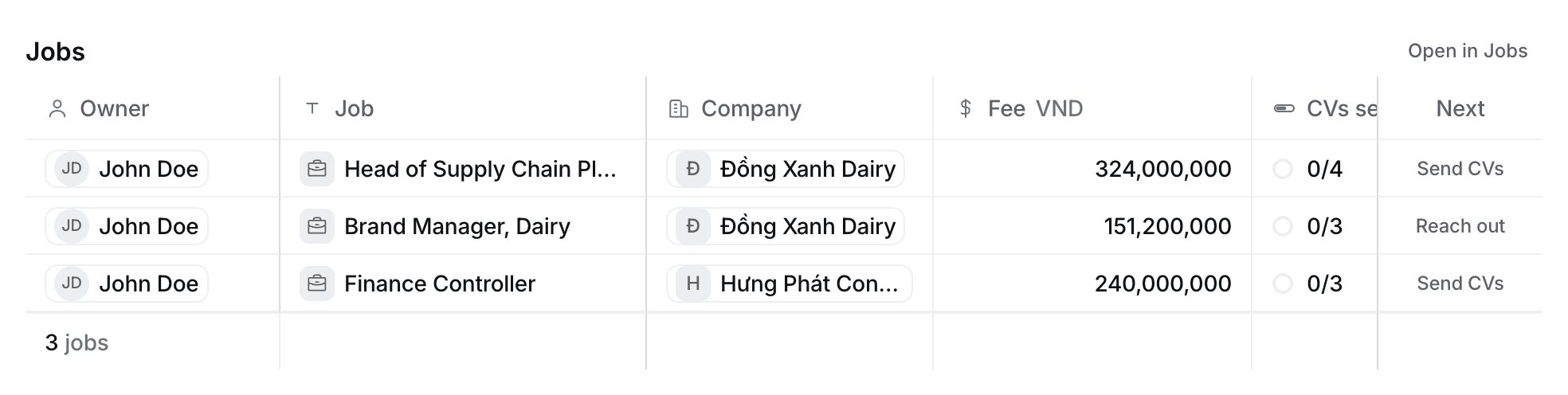
Below them, **Jobs** lists every Job your team is working, and **Live pipeline** their open applications. Today shows the columns you need at a glance: Owner, Job, Company, Fee, CVs sent and Received for Jobs, and Owner, Candidate, Job, Company, Fee and Stage for the pipeline. Select **Jobs** or **Live pipeline** to open the full View with every column. On a wide screen Needs you sits on the right of the two tables; on a laptop it sits above them.
Each Open Job that still needs CVs has one next step in its **Next** column, taken from where its candidates stand:
| Button | When | Opens |
| - | - | - |
| **Send CVs** | Someone on the Job is at Interview | The Job's Pipeline, with **CV out** open |
| **Reach out** | Someone is on the Short list, nobody at Interview | The Job's Pipeline |
| **Shortlist** | Nobody at Short list or Interview | The Pipeline when there are applicants or a Long list, otherwise Sourcing |
A Job whose CVs sent have reached its CV target has no button.
1. **Replies.** Conversations where someone is waiting on you.
2. **Recordings to file.** Echo calls with no calendar event yet.
3. **To review.** The changes Flo proposes, waiting for your approval.
Until you're set up, the **Get started** checklist above Needs you shows what Hire still needs: Gmail, your calendar, Echo, the people Hire found, your work and, for the Owner, your team. See [Get started](/guides/get-started).
Below them, **Jobs** lists every Job your team is working, and **Live pipeline** their open applications. Today shows the columns you need at a glance: Owner, Job, Company, Fee, CVs sent and Received for Jobs, and Owner, Candidate, Job, Company, Fee and Stage for the pipeline. Select **Jobs** or **Live pipeline** to open the full View with every column. On a wide screen Needs you sits on the right of the two tables; on a laptop it sits above them.
Each Open Job that still needs CVs has one next step in its **Next** column, taken from where its candidates stand:
| Button | When | Opens |
| - | - | - |
| **Send CVs** | Someone on the Job is at Interview | The Job's Pipeline, with **CV out** open |
| **Reach out** | Someone is on the Short list, nobody at Interview | The Job's Pipeline |
| **Shortlist** | Nobody at Short list or Interview | The Pipeline when there are applicants or a Long list, otherwise Sourcing |
A Job whose CVs sent have reached its CV target has no button.
 ## Before you start
* You have signed in from your invitation. Your invitation works only for the address it was sent to.
* Your calendar and Gmail are connected. See [Get started](/guides/get-started).
## 1. Clear Needs you
Start at **Needs you** on Today.
* **Morning brief.** On weekdays at 08:00, the replies you owe, who is stuck, who is in interviews and your open roles. **Open brief** opens it. See [Read your morning brief](/guides/how-to/read-your-morning-brief).
* **Replies.** "12 replies need you" counts the conversations waiting on you. **Open Inbox** takes you there.
* **Recordings to file.** Echo calls with no calendar event. **Open Meetings** takes you to them.
* **To review.** Flo's proposals, grouped by the Rule or chat they came from. Each row shows the change, such as "Expected 110M VND, Notice 45 days". Untick anything you disagree with, then select **Approve** on the group, or **Deny** to drop it.
Nothing Flo proposes changes a record until you approve it. See [How Flo proposes and you approve](/guides/explanation/flo-approvals-and-undo).
## 2. Answer your mail
Open **Inbox**. **Needs reply** holds the threads where someone is waiting on you, each with the reason, such as "Client wants to offer" or "Interview moved". Answer from Hire, or link the thread to its Job so your team can read it. See [Use the Inbox](/guides/how-to/use-the-inbox).
## 3. Prepare for today's calls
Open **Meetings**. **Coming up** lists today's calls. Open one to read Flo's brief: who you are meeting, where their Application stands and what was said last time. See [Find a meeting](/guides/how-to/find-a-meeting).
## 4. Log what happened
After a call that Echo didn't record, press ⌘E for **Log activity**. Say or type what happened, for example "Called Nhung on Zalo, she accepts 110M with 45 days' notice". Flo files it on the right record and proposes the updates. See [Log activity](/guides/how-to/log-activity).
## 5. Work your tasks
Open **Tasks** for what's due today. **To review** on the same page is a table of every proposal still waiting, grouped by where it came from; the tab shows how many wait. Tick several and select **Approve**, or walk the rows with J and K and press Y to approve or N to deny.
## 6. Make your BD calls
With a BD calls target, Today shows **BD calls today**, such as "4 of 10 BD calls today". Select **Targets** to open your target companies, Tier 1 first, then log each call with **Log call** or ⌘E. See [How to set a daily BD calls target](/guides/how-to/set-a-daily-bd-target) and [How to track a target company](/guides/how-to/track-a-target-company).
## Before you start
* You have signed in from your invitation. Your invitation works only for the address it was sent to.
* Your calendar and Gmail are connected. See [Get started](/guides/get-started).
## 1. Clear Needs you
Start at **Needs you** on Today.
* **Morning brief.** On weekdays at 08:00, the replies you owe, who is stuck, who is in interviews and your open roles. **Open brief** opens it. See [Read your morning brief](/guides/how-to/read-your-morning-brief).
* **Replies.** "12 replies need you" counts the conversations waiting on you. **Open Inbox** takes you there.
* **Recordings to file.** Echo calls with no calendar event. **Open Meetings** takes you to them.
* **To review.** Flo's proposals, grouped by the Rule or chat they came from. Each row shows the change, such as "Expected 110M VND, Notice 45 days". Untick anything you disagree with, then select **Approve** on the group, or **Deny** to drop it.
Nothing Flo proposes changes a record until you approve it. See [How Flo proposes and you approve](/guides/explanation/flo-approvals-and-undo).
## 2. Answer your mail
Open **Inbox**. **Needs reply** holds the threads where someone is waiting on you, each with the reason, such as "Client wants to offer" or "Interview moved". Answer from Hire, or link the thread to its Job so your team can read it. See [Use the Inbox](/guides/how-to/use-the-inbox).
## 3. Prepare for today's calls
Open **Meetings**. **Coming up** lists today's calls. Open one to read Flo's brief: who you are meeting, where their Application stands and what was said last time. See [Find a meeting](/guides/how-to/find-a-meeting).
## 4. Log what happened
After a call that Echo didn't record, press ⌘E for **Log activity**. Say or type what happened, for example "Called Nhung on Zalo, she accepts 110M with 45 days' notice". Flo files it on the right record and proposes the updates. See [Log activity](/guides/how-to/log-activity).
## 5. Work your tasks
Open **Tasks** for what's due today. **To review** on the same page is a table of every proposal still waiting, grouped by where it came from; the tab shows how many wait. Tick several and select **Approve**, or walk the rows with J and K and press Y to approve or N to deny.
## 6. Make your BD calls
With a BD calls target, Today shows **BD calls today**, such as "4 of 10 BD calls today". Select **Targets** to open your target companies, Tier 1 first, then log each call with **Log call** or ⌘E. See [How to set a daily BD calls target](/guides/how-to/set-a-daily-bd-target) and [How to track a target company](/guides/how-to/track-a-target-company).
 ## What you did
You cleared the approvals that keep your records right, answered the people waiting on you, filed today's calls and made your BD calls. Do the same each morning.
## Next
Set up a Job, review applicants and send CVs.
This documentation is built and hosted on [Mintlify](https://mintlify.com), a developer documentation platform.
## What you did
You cleared the approvals that keep your records right, answered the people waiting on you, filed today's calls and made your BD calls. Do the same each morning.
## Next
Set up a Job, review applicants and send CVs.
This documentation is built and hosted on [Mintlify](https://mintlify.com), a developer documentation platform.