> ## Documentation Index
> Fetch the complete documentation index at: https://docs.ascern.io/llms.txt
> Use this file to discover all available pages before exploring further.
# How to track a target company
> Follow a company you want as a client, from first contact to won, with its own owner and next step.
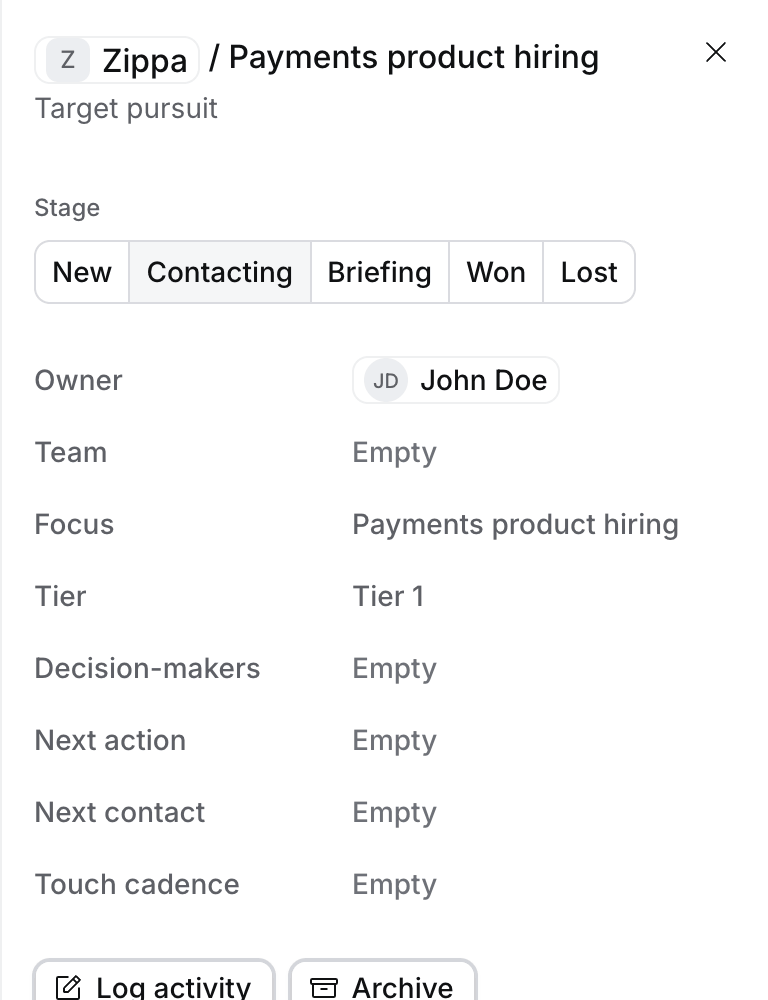
A target is a company you are pursuing. One company can hold several pursuits, each with its own focus, such as "Payments product hiring".
## Steps
1. Open **Companies › Targets** and select **Add to target list**, or open a company, open **⋯** and select **Add to target list**.
2. Fill in the **Focus**, the **Tier** and the **Next action**. You're the owner unless you pick someone else. Tier 1 is the 3 to 6 companies you work hardest, Tier 2 the next 6 to 15, and Tier 3 the rest.
3. As you work it, change its **Stage**: **New**, **Contacting**, **Briefing**, **Won** or **Lost**.
 ## What happens next
* **Won** makes the company a client. Hire says so and changes its Relationship to **Client**.
* While a target is **New**, **Contacting** or **Briefing**, Flo's searches for candidates leave out people who work at that company, as they do for clients: you place into it, so you don't headhunt from it. To headhunt there anyway, set the company's **Headhunting** to **Headhunt from**. The target then shows **Headhunting from this company**. **Place into** keeps a company's people out with no target. When Flo changes **Headhunting**, or makes a company a client or not, you approve it on a card first.
* **Log touch** counts each contact against **Touches planned**. **Log activity** and **Schedule meeting** on the target file a call or book a meeting on it.
* **All targets** groups the list by Tier, Tier 1 first, and each tier by Next touch, so the company to call next is on top. Each group header counts its targets.
* **Mine** shows your targets. **Needs owner** lists targets nobody owns, for Owners, Admins and Managers.
## Troubleshooting
* **"Only New and Lost are allowed".** The company is marked **Do not contact**. Clear it on the company, under **⋯**, if that has changed.
* **You can't change the stage.** Only the target's owner and the people who manage them can.
## Related
* [How to add a company and fill it from its website](/guides/how-to/add-a-company-and-fill-it-from-its-website)
* [How to create a job from a client briefing call](/guides/how-to/create-a-job-from-a-briefing-call)
* [How to set a daily BD calls target](/guides/how-to/set-a-daily-bd-target)
This documentation is built and hosted on [Mintlify](https://mintlify.com), a developer documentation platform.
## What happens next
* **Won** makes the company a client. Hire says so and changes its Relationship to **Client**.
* While a target is **New**, **Contacting** or **Briefing**, Flo's searches for candidates leave out people who work at that company, as they do for clients: you place into it, so you don't headhunt from it. To headhunt there anyway, set the company's **Headhunting** to **Headhunt from**. The target then shows **Headhunting from this company**. **Place into** keeps a company's people out with no target. When Flo changes **Headhunting**, or makes a company a client or not, you approve it on a card first.
* **Log touch** counts each contact against **Touches planned**. **Log activity** and **Schedule meeting** on the target file a call or book a meeting on it.
* **All targets** groups the list by Tier, Tier 1 first, and each tier by Next touch, so the company to call next is on top. Each group header counts its targets.
* **Mine** shows your targets. **Needs owner** lists targets nobody owns, for Owners, Admins and Managers.
## Troubleshooting
* **"Only New and Lost are allowed".** The company is marked **Do not contact**. Clear it on the company, under **⋯**, if that has changed.
* **You can't change the stage.** Only the target's owner and the people who manage them can.
## Related
* [How to add a company and fill it from its website](/guides/how-to/add-a-company-and-fill-it-from-its-website)
* [How to create a job from a client briefing call](/guides/how-to/create-a-job-from-a-briefing-call)
* [How to set a daily BD calls target](/guides/how-to/set-a-daily-bd-target)
This documentation is built and hosted on [Mintlify](https://mintlify.com), a developer documentation platform.