> ## Documentation Index
> Fetch the complete documentation index at: https://docs.ascern.io/llms.txt
> Use this file to discover all available pages before exploring further.
# How to see who you have contacted
> Read each contact's BD status: Not contacted, Called, Met or Active.
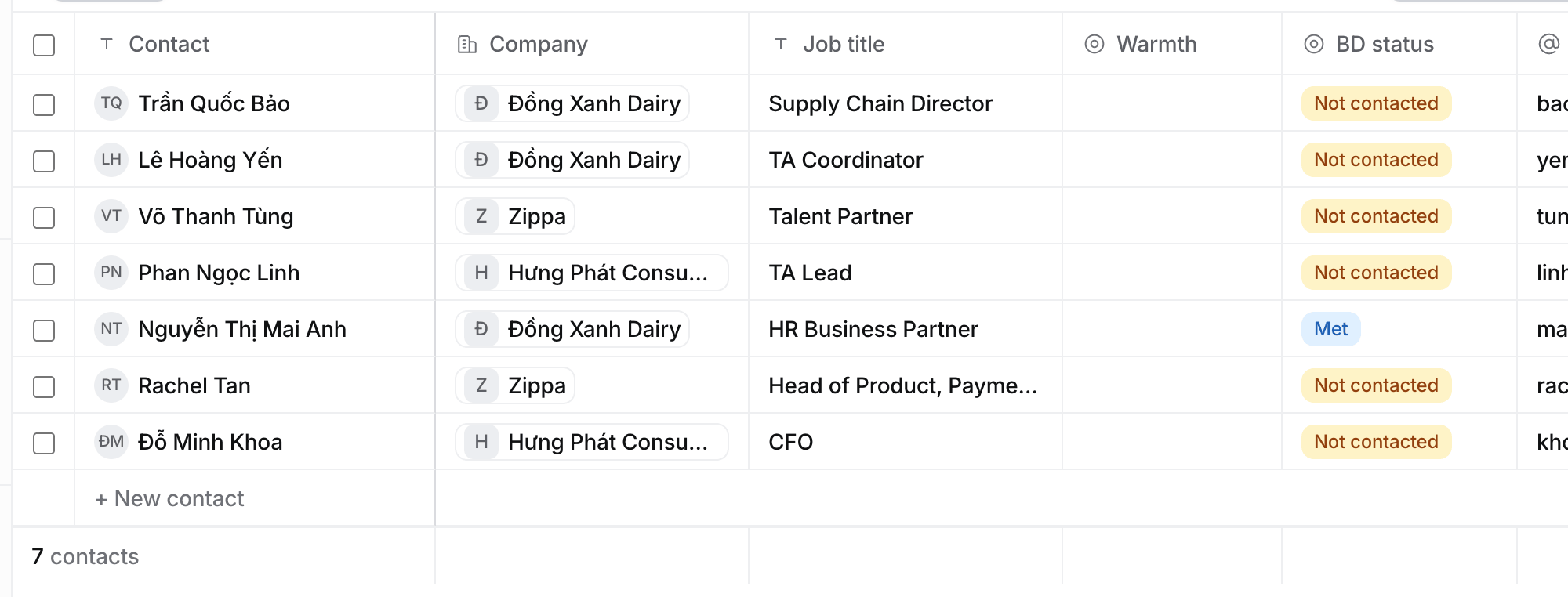
Phil's BD training colours each contact by how far you have got with them. Hire works out the same status from your calls and meetings, so you never set it by hand.
## Steps
1. Open **Contacts**. The **BD status** column sits after **Warmth**.
2. Filter or group by **BD status** to see who you have not called yet.
 ## What each status means
| Status | When |
| - | - |
| **Not contacted** | No logged call, message or meeting with this contact |
| **Called** | At least one call, message or email logged on the contact |
| **Met** | A meeting with them has ended, or you logged a touch with the Meeting channel |
| **Active** | They are the hiring manager on an open job, or a decision-maker on a won target |
| **Do not contact** | The person is marked Do not contact. It replaces the status |
A target's **Decision-makers** show the same status next to each name.
**Called** only means the call happened. When a company shows no interest, move its target to **Lost**.
## Related
* [How to track a target company](/guides/how-to/track-a-target-company)
* [How to log activity](/guides/how-to/log-activity)
This documentation is built and hosted on [Mintlify](https://mintlify.com), a developer documentation platform.
## What each status means
| Status | When |
| - | - |
| **Not contacted** | No logged call, message or meeting with this contact |
| **Called** | At least one call, message or email logged on the contact |
| **Met** | A meeting with them has ended, or you logged a touch with the Meeting channel |
| **Active** | They are the hiring manager on an open job, or a decision-maker on a won target |
| **Do not contact** | The person is marked Do not contact. It replaces the status |
A target's **Decision-makers** show the same status next to each name.
**Called** only means the call happened. When a company shows no interest, move its target to **Lost**.
## Related
* [How to track a target company](/guides/how-to/track-a-target-company)
* [How to log activity](/guides/how-to/log-activity)
This documentation is built and hosted on [Mintlify](https://mintlify.com), a developer documentation platform.