> ## Documentation Index
> Fetch the complete documentation index at: https://docs.ascern.io/llms.txt
> Use this file to discover all available pages before exploring further.
# How to read a transcript
> Name who's speaking, find a word, and jump from Echo's notes to the moment it was said.
A recorded call's page holds Echo's notes and the full transcript. Name the speakers once, and the transcript reads with real names.
## Name the speakers
1. Open the meeting's page and select **Transcript**.
2. Under **Speakers**, each of Echo's labels shows its share of the words.
3. Select **Confirm** when a label already reads as a guest's name, or **Who is this?** to pick the person from the people on the invite.
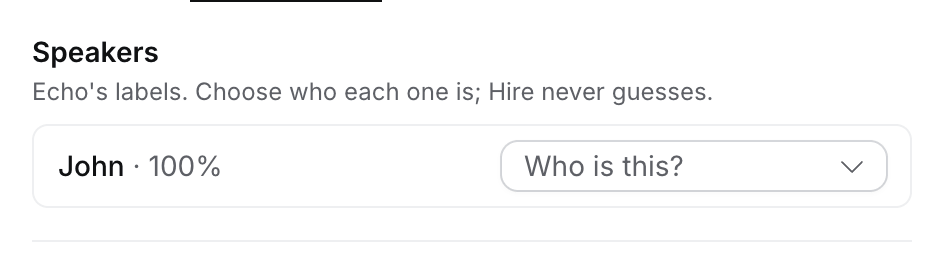 **Change** picks someone else, and **Not matched** clears it. A matched speaker shows "heard as" Echo's label. Hire never matches a speaker on its own.
## Find a word
Type in **Find in transcript**. Hire marks every match and counts them, such as "2 of 5". Press ↵ for the next match and ⇧ ↵ for the previous. Accents and capitals don't matter.
## Jump from the notes
**AI Notes** holds Echo's notes. When a line clearly matches something said, Flo adds the time after it, and the notes say "Times added by Flo from the transcript". Select a time to jump to that moment in **Transcript**, then **Back to notes**. A line Flo can't place for sure gets no time.
## People who weren't on the invite
Under **Speakers**, **Also in the meeting (not invited)** lists people Echo heard who weren't on the calendar invite. Hire never links them by itself. For each one:
* **Link to Vy Nguyen** shows when they have the same full name as someone in Hire at the client's company.
* **Did you mean** offers up to three addresses Hire saw near the meeting, such as **[vy@acme.com](mailto:vy@acme.com) · emailed 2 days before**. Select one to use it.
* Type an **Email**, **Phone** or **LinkedIn** and select **Save**. If someone in Hire has it, the speaker becomes them; if not, they wait on **People we found** with it.
* **Link to a person** searches everyone in Hire.
* **Add as Contact** or **Add as Candidate** puts them on **People we found** by name.
Once linked, the recording shows on their record's **Activity**. Flo can propose the same link for you to approve.
## Add a transcript yourself
When an ended call has no transcript, the **Transcript** tab says why: Echo is still writing the notes (Hire waits up to an hour after the call), the call wasn't recorded with Echo or is private there, or Echo isn't connected.
For a call Echo didn't record, select **Add transcript** and paste it, or upload a .txt, .vtt or .srt file, up to 200,000 characters. Only you see it until you save the meeting's outcome. **Replace** and **Remove** change it later.
## Related
* [How to file a recording](/guides/how-to/file-a-call)
* [How to ask Flo across a record's meetings](/guides/how-to/ask-flo-across-meetings)
This documentation is built and hosted on [Mintlify](https://mintlify.com), a developer documentation platform.
**Change** picks someone else, and **Not matched** clears it. A matched speaker shows "heard as" Echo's label. Hire never matches a speaker on its own.
## Find a word
Type in **Find in transcript**. Hire marks every match and counts them, such as "2 of 5". Press ↵ for the next match and ⇧ ↵ for the previous. Accents and capitals don't matter.
## Jump from the notes
**AI Notes** holds Echo's notes. When a line clearly matches something said, Flo adds the time after it, and the notes say "Times added by Flo from the transcript". Select a time to jump to that moment in **Transcript**, then **Back to notes**. A line Flo can't place for sure gets no time.
## People who weren't on the invite
Under **Speakers**, **Also in the meeting (not invited)** lists people Echo heard who weren't on the calendar invite. Hire never links them by itself. For each one:
* **Link to Vy Nguyen** shows when they have the same full name as someone in Hire at the client's company.
* **Did you mean** offers up to three addresses Hire saw near the meeting, such as **[vy@acme.com](mailto:vy@acme.com) · emailed 2 days before**. Select one to use it.
* Type an **Email**, **Phone** or **LinkedIn** and select **Save**. If someone in Hire has it, the speaker becomes them; if not, they wait on **People we found** with it.
* **Link to a person** searches everyone in Hire.
* **Add as Contact** or **Add as Candidate** puts them on **People we found** by name.
Once linked, the recording shows on their record's **Activity**. Flo can propose the same link for you to approve.
## Add a transcript yourself
When an ended call has no transcript, the **Transcript** tab says why: Echo is still writing the notes (Hire waits up to an hour after the call), the call wasn't recorded with Echo or is private there, or Echo isn't connected.
For a call Echo didn't record, select **Add transcript** and paste it, or upload a .txt, .vtt or .srt file, up to 200,000 characters. Only you see it until you save the meeting's outcome. **Replace** and **Remove** change it later.
## Related
* [How to file a recording](/guides/how-to/file-a-call)
* [How to ask Flo across a record's meetings](/guides/how-to/ask-flo-across-meetings)
This documentation is built and hosted on [Mintlify](https://mintlify.com), a developer documentation platform.