> ## Documentation Index
> Fetch the complete documentation index at: https://docs.ascern.io/llms.txt
> Use this file to discover all available pages before exploring further.
# How to prep with the meeting brief
> Open an upcoming meeting, read what Flo pulled together from Hire, pick the questions you'll ask and send them to Echo.
Before a meeting with people who are in Hire, Flo writes you a brief: what to know going in and what to ask, each point linked to where it came from. Before a client briefing, Flo writes it 2 hours ahead and it waits in **Needs you** on Today.
## Steps
1. Open **Meetings**. Under **Coming up**, select the meeting, then **Open** to see its page. For a client briefing, you can also select **Open brief** in **Needs you**.
2. The page opens on **Brief**. The first time, Flo writes it from Hire's records, which takes a few seconds: "Flo is writing the brief from Hire's records…".
3. Read **What to know**. Select a point's source to open that record.
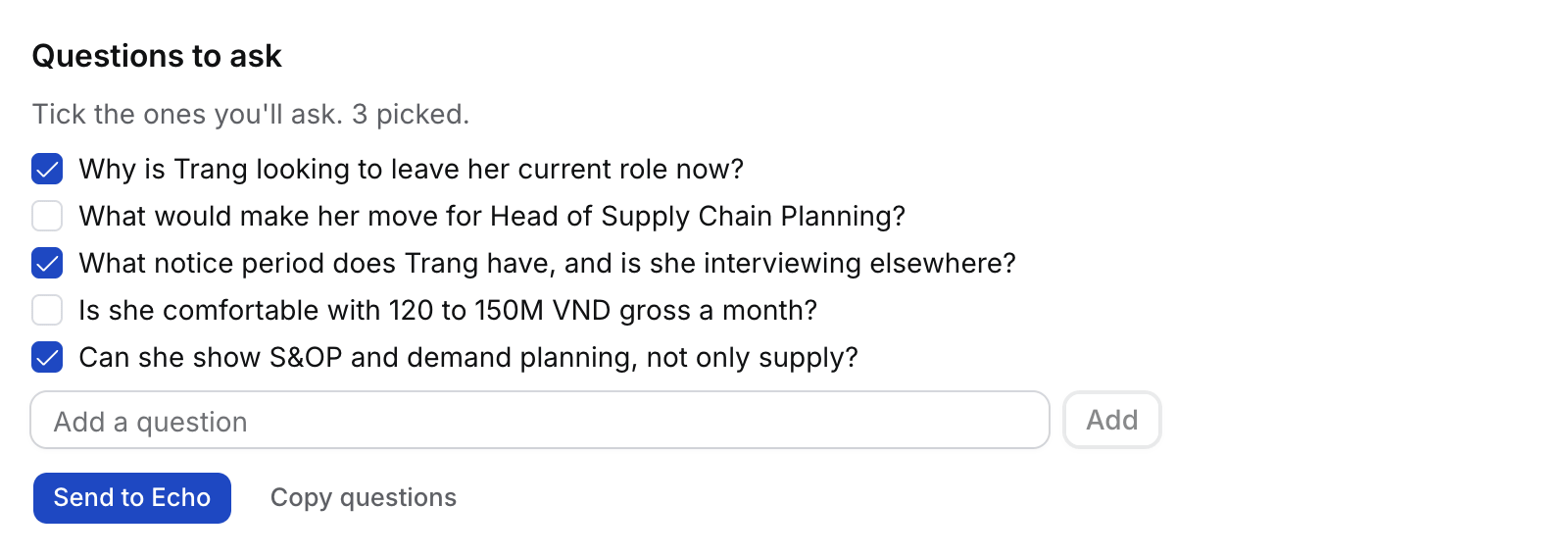
4. Under **Questions to ask**, tick the questions you'll ask. To add one of your own, type it in **Add a question** and select **Add**.
5. Select **Send to Echo**. The questions go to Echo's prep for this meeting, so you have them during the call. Hire also sends what Echo needs to follow the call: the role, the stage, the Job's JD and client brief, and the candidate's CV, each cut to about 1,200 characters. If Echo can't take them, select **Copy questions** and paste them into Echo.
 ## What's in it
* **What to know.** Up to six points, such as the candidate's stage, what the client asked for, salary and notice. Each names its source.
* **Questions to ask.** With a candidate on the call, up to eight: why they would leave now (push factors), what would make them move (pull factors), motivation, salary, notice, and the Job's must-haves they haven't shown yet. For other meetings, up to four drawn from the open points.
* Flo reads the record the meeting is about first, then each guest's Candidate, live Applications with their Job's briefing, and Contact: their fields, recent Activity and open Tasks.
## What happens next
* **Refresh** writes the brief again after you log something new. Your ticked questions stay.
* Changing the ticked questions after you sent them shows **Send to Echo** again.
* After the call, Flo proposes the candidate's salary, notice, motivation, push factors and pull factors on one card for you to approve. See [How to file a call](/guides/how-to/file-a-call).
* Only you see your brief. Writing it never changes a record.
* After the call, the page opens on the notes and the brief keeps its own **Brief** tab.
* To change how early the client-briefing brief arrives, or turn it off, open **Flo › Rules › Brief me before client briefings**.
## Troubleshooting
* **"Nobody on the invite is in Hire".** Add a guest as a Contact or Candidate, or link the meeting to a record under **About**, then select **Refresh**.
* **"Hire's records hold nothing new about these people".** Log your last call with them, then select **Refresh**.
* **"Flo couldn't write the brief".** Select **Refresh**.
* **"Echo can't take questions from Hire yet".** Your Echo doesn't accept questions from Hire yet. Select **Copy questions** and paste them into the call's prep in Echo.
* **"Echo couldn't take the questions".** Echo didn't answer. Select **Copy questions** and paste them into the meeting's notes in Echo.
* **"Connect Echo in Settings › Connections".** Connect Echo, then select **Send to Echo** again.
## Related
* [How to find a meeting](/guides/how-to/find-a-meeting)
* [How to file a call](/guides/how-to/file-a-call)
* [How to log a meeting's outcome](/guides/how-to/log-a-meetings-outcome)
This documentation is built and hosted on [Mintlify](https://mintlify.com), a developer documentation platform.
## What's in it
* **What to know.** Up to six points, such as the candidate's stage, what the client asked for, salary and notice. Each names its source.
* **Questions to ask.** With a candidate on the call, up to eight: why they would leave now (push factors), what would make them move (pull factors), motivation, salary, notice, and the Job's must-haves they haven't shown yet. For other meetings, up to four drawn from the open points.
* Flo reads the record the meeting is about first, then each guest's Candidate, live Applications with their Job's briefing, and Contact: their fields, recent Activity and open Tasks.
## What happens next
* **Refresh** writes the brief again after you log something new. Your ticked questions stay.
* Changing the ticked questions after you sent them shows **Send to Echo** again.
* After the call, Flo proposes the candidate's salary, notice, motivation, push factors and pull factors on one card for you to approve. See [How to file a call](/guides/how-to/file-a-call).
* Only you see your brief. Writing it never changes a record.
* After the call, the page opens on the notes and the brief keeps its own **Brief** tab.
* To change how early the client-briefing brief arrives, or turn it off, open **Flo › Rules › Brief me before client briefings**.
## Troubleshooting
* **"Nobody on the invite is in Hire".** Add a guest as a Contact or Candidate, or link the meeting to a record under **About**, then select **Refresh**.
* **"Hire's records hold nothing new about these people".** Log your last call with them, then select **Refresh**.
* **"Flo couldn't write the brief".** Select **Refresh**.
* **"Echo can't take questions from Hire yet".** Your Echo doesn't accept questions from Hire yet. Select **Copy questions** and paste them into the call's prep in Echo.
* **"Echo couldn't take the questions".** Echo didn't answer. Select **Copy questions** and paste them into the meeting's notes in Echo.
* **"Connect Echo in Settings › Connections".** Connect Echo, then select **Send to Echo** again.
## Related
* [How to find a meeting](/guides/how-to/find-a-meeting)
* [How to file a call](/guides/how-to/file-a-call)
* [How to log a meeting's outcome](/guides/how-to/log-a-meetings-outcome)
This documentation is built and hosted on [Mintlify](https://mintlify.com), a developer documentation platform.