> ## Documentation Index
> Fetch the complete documentation index at: https://docs.ascern.io/llms.txt
> Use this file to discover all available pages before exploring further.
# How to import candidates
> Bring a candidate spreadsheet or a folder of CVs into Hire.
Import a candidate spreadsheet, or upload a folder of CVs. For several sheets or another system's export, [import with Flo](/guides/how-to/import-with-flo).
On **Candidates**, select **Import** › **Import CSV** (in **⋯** from 20 candidates), or drop the file on the page.
 Choose the header row, check the columns, select **Preview**, then **Import N candidates**. The steps match [importing contacts](/guides/how-to/import-contacts).
 ## Upload a folder of CVs
Select **Import** › **Upload CVs**, then **Choose files** or **Choose a folder**. Up to 200 PDF or Word files, or a zip.
## Upload a folder of CVs
Select **Import** › **Upload CVs**, then **Choose files** or **Choose a folder**. Up to 200 PDF or Word files, or a zip.
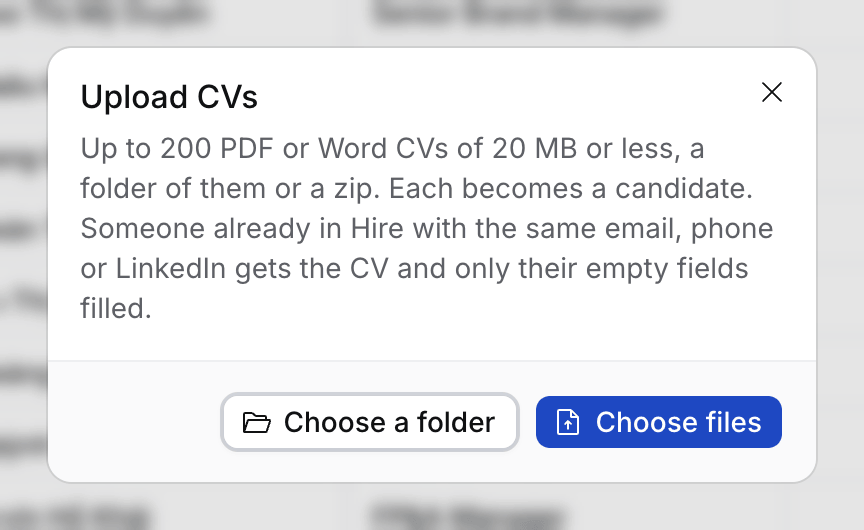 Hire matches people by email, phone or LinkedIn, never by name. Someone already in Hire gets the CV and only their empty fields filled.
In a spreadsheet, a new person who may be someone you have is not added, and the row says who: the same name, a nickname, or the same address with a +tag ("looks like Le Thi Bich"). Add them by hand if they're someone else. A shared inbox such as careers@ or hr@ is refused as a person.
## If something looks wrong
* **A CV says Couldn't read.** It's a scan, over 20 MB, not PDF or Word, or has no name.
* **A Do not contact column.** Yes marks a new person **Do not contact**. People you have keep their own setting.
* **Wrong import.** Select **Undo import** within 14 days. It keeps records someone worked on since.
This documentation is built and hosted on [Mintlify](https://mintlify.com), a developer documentation platform.
Hire matches people by email, phone or LinkedIn, never by name. Someone already in Hire gets the CV and only their empty fields filled.
In a spreadsheet, a new person who may be someone you have is not added, and the row says who: the same name, a nickname, or the same address with a +tag ("looks like Le Thi Bich"). Add them by hand if they're someone else. A shared inbox such as careers@ or hr@ is refused as a person.
## If something looks wrong
* **A CV says Couldn't read.** It's a scan, over 20 MB, not PDF or Word, or has no name.
* **A Do not contact column.** Yes marks a new person **Do not contact**. People you have keep their own setting.
* **Wrong import.** Select **Undo import** within 14 days. It keeps records someone worked on since.
This documentation is built and hosted on [Mintlify](https://mintlify.com), a developer documentation platform.