> ## Documentation Index
> Fetch the complete documentation index at: https://docs.ascern.io/llms.txt
> Use this file to discover all available pages before exploring further.
# How to find a meeting
> See what needs filing, what's coming up and every meeting, recording and log you've had, in one list.
**Meetings** opens on a list: what needs filing, then what's coming up, then every meeting, recording and log you've had. The calendar is one press away.
1. Select **Meetings** in the sidebar. **List** is selected.
2. File anything under **To file**.
3. Find a past meeting or log under **Past**, by searching, filtering or choosing a View.
 ## To file
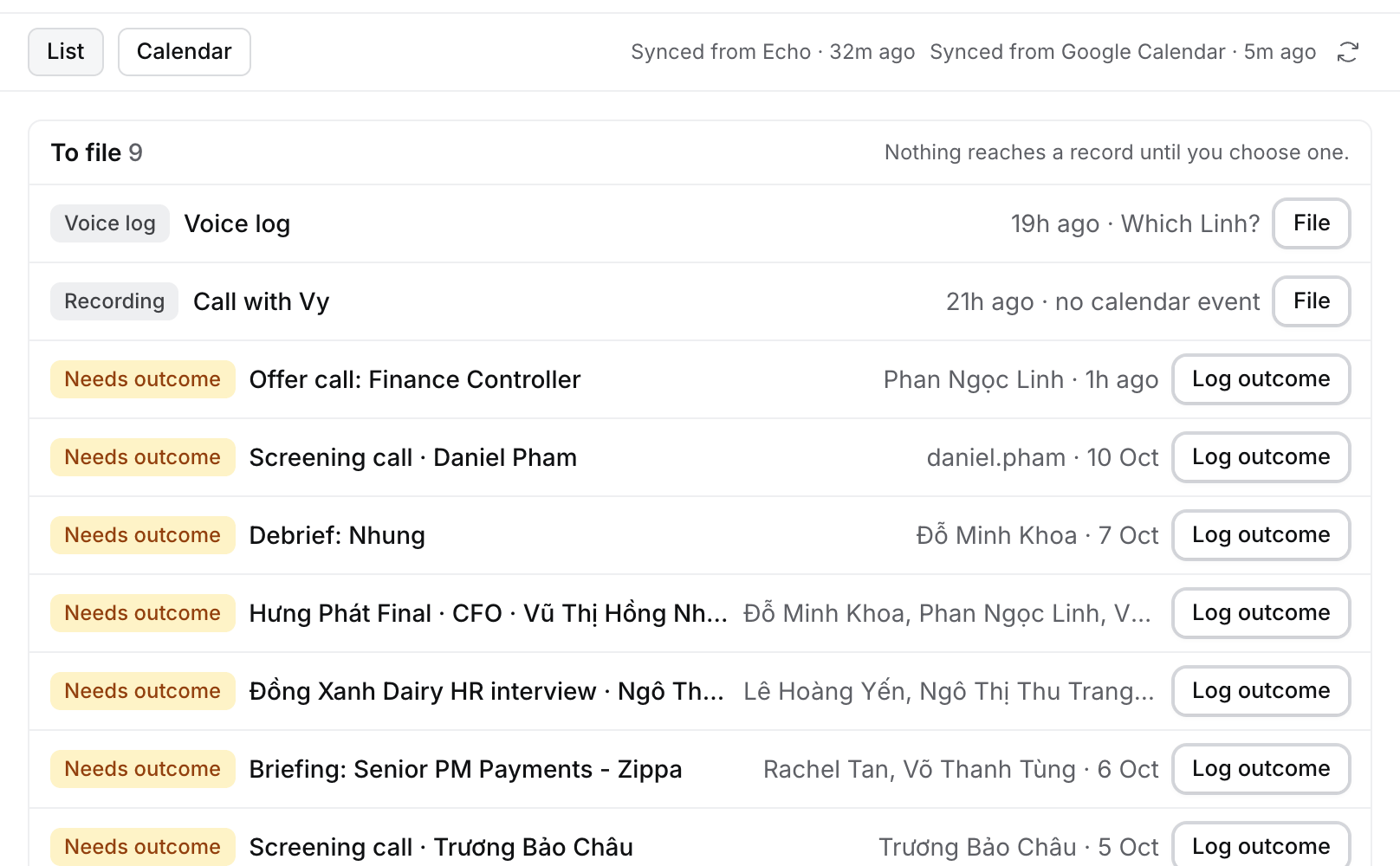
Echo recordings and voice logs that aren't filed yet wait here, along with meetings that still need an outcome. Nothing reaches a record until you choose one.
* **Voice log** with **Which Linh?**: Flo heard a name that fits more than one record. Select it and pick the record.
* **Recording** with **no calendar event**: Echo recorded it outside your calendar, for example a phone call. Select it, then file it to a record or link it to an event. See [Your Echo recordings](/guides/how-to/connect-echo#what-hire-reads-from-echo).
* **Needs outcome**: a meeting that ended without an outcome. Select **Log outcome**, or **Not a recruiting meeting** to stop the ask. **Undo** on the message brings it back.
Meetings with only colleagues on the invite, or only people on your agency's own email domains, never wait here. They still show in **Coming up** and on the calendar.
Today's **Needs you** shows how many recordings wait here, with **Open Meetings**. Recordings Echo made before you connected it don't wait here. They're in **Past**, with your voice logs.
## Coming up
Today and the next six days, grouped by day. Each row shows its time, type and the record it's about. Select one to open it.
With nothing in those days, Coming up names the next event on your calendar, for example **Nothing until Mon 19 Oct.** then **Next: Weekly dev sprint · Mon 19 Oct, 11:30**.
## Past
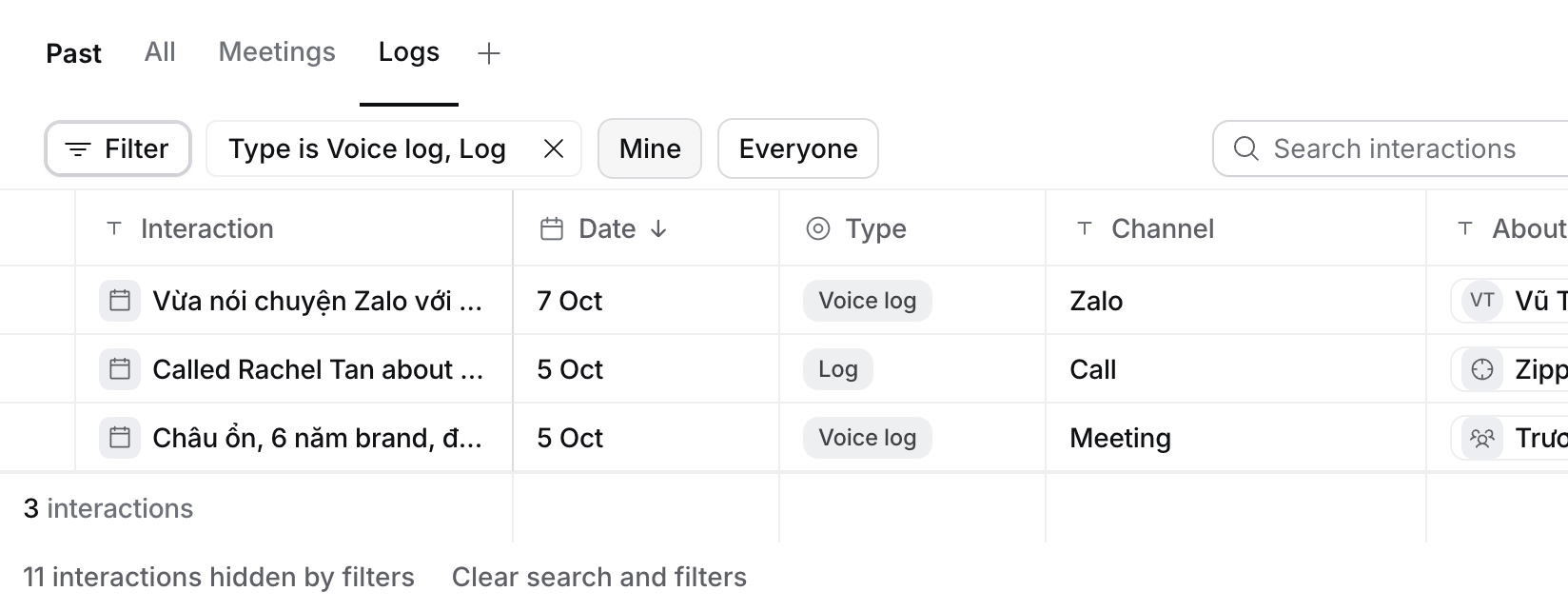
Every interaction you've had, newest first, in the same table as Companies or Jobs: meetings from your calendar, Echo recordings, voice logs and the calls and messages you logged.
## To file
Echo recordings and voice logs that aren't filed yet wait here, along with meetings that still need an outcome. Nothing reaches a record until you choose one.
* **Voice log** with **Which Linh?**: Flo heard a name that fits more than one record. Select it and pick the record.
* **Recording** with **no calendar event**: Echo recorded it outside your calendar, for example a phone call. Select it, then file it to a record or link it to an event. See [Your Echo recordings](/guides/how-to/connect-echo#what-hire-reads-from-echo).
* **Needs outcome**: a meeting that ended without an outcome. Select **Log outcome**, or **Not a recruiting meeting** to stop the ask. **Undo** on the message brings it back.
Meetings with only colleagues on the invite, or only people on your agency's own email domains, never wait here. They still show in **Coming up** and on the calendar.
Today's **Needs you** shows how many recordings wait here, with **Open Meetings**. Recordings Echo made before you connected it don't wait here. They're in **Past**, with your voice logs.
## Coming up
Today and the next six days, grouped by day. Each row shows its time, type and the record it's about. Select one to open it.
With nothing in those days, Coming up names the next event on your calendar, for example **Nothing until Mon 19 Oct.** then **Next: Weekly dev sprint · Mon 19 Oct, 11:30**.
## Past
Every interaction you've had, newest first, in the same table as Companies or Jobs: meetings from your calendar, Echo recordings, voice logs and the calls and messages you logged.
 | Column | What it shows |
| - | - |
| **Interaction** | A meeting's title, or a log's first line. Select it to open it. |
| **Date** | When it happened. |
| **Type** | Meeting, Recording, Voice log or Log. |
| **Channel** | A log's channel: Call, Zalo, WhatsApp, Email, Meeting, or the name typed for Other, such as Telegram. |
| **About** | The record it's about. Select it to open the record. |
| **Outcome** | A meeting's outcome, or a call's: Connected, No answer, Left voicemail. |
| **Source** | Calendar, Echo, Calendar · Echo, Log activity typed or by voice, a call's notes, or Other. |
| **Flo proposed** | How many changes Flo proposed from a log, and how many still wait for you. Select it to open the Flo chat. |
**Display** adds **Meeting type**, **Duration** and **Who**. The Views are **All**, **Meetings** and **Logs**, and you can save your own, as on any table. **Filter** narrows by most columns: **Channel contains Tele** finds logs on Telegram typed as Other. A meeting's outcome note is part of its meeting, not a row of its own.
* A meeting opens its page. A recording opens beside the list, where you file it.
* A log opens beside the list: the whole note with **Edit** and **Archive**, its record, and what Flo proposed from it.
Owners, Admins and Managers can switch **Mine** to **Everyone**. Everyone adds your teammates' logs. Meetings stay the ones on your own calendar.
## A record's meetings
A Contact, Candidate or Job has a **Meetings** tab. It lists the meetings coming up, then **Past**: the same table as Meetings › Past, with every meeting, recording and log about that record. A Candidate's and a Job's tab also include the ones about their applications.
On a Job, **Interview loop** comes first: one row per candidate, with their screen and each client round under the Job's rounds.
| Column | What it shows |
| - | - |
| **Interaction** | A meeting's title, or a log's first line. Select it to open it. |
| **Date** | When it happened. |
| **Type** | Meeting, Recording, Voice log or Log. |
| **Channel** | A log's channel: Call, Zalo, WhatsApp, Email, Meeting, or the name typed for Other, such as Telegram. |
| **About** | The record it's about. Select it to open the record. |
| **Outcome** | A meeting's outcome, or a call's: Connected, No answer, Left voicemail. |
| **Source** | Calendar, Echo, Calendar · Echo, Log activity typed or by voice, a call's notes, or Other. |
| **Flo proposed** | How many changes Flo proposed from a log, and how many still wait for you. Select it to open the Flo chat. |
**Display** adds **Meeting type**, **Duration** and **Who**. The Views are **All**, **Meetings** and **Logs**, and you can save your own, as on any table. **Filter** narrows by most columns: **Channel contains Tele** finds logs on Telegram typed as Other. A meeting's outcome note is part of its meeting, not a row of its own.
* A meeting opens its page. A recording opens beside the list, where you file it.
* A log opens beside the list: the whole note with **Edit** and **Archive**, its record, and what Flo proposed from it.
Owners, Admins and Managers can switch **Mine** to **Everyone**. Everyone adds your teammates' logs. Meetings stay the ones on your own calendar.
## A record's meetings
A Contact, Candidate or Job has a **Meetings** tab. It lists the meetings coming up, then **Past**: the same table as Meetings › Past, with every meeting, recording and log about that record. A Candidate's and a Job's tab also include the ones about their applications.
On a Job, **Interview loop** comes first: one row per candidate, with their screen and each client round under the Job's rounds.
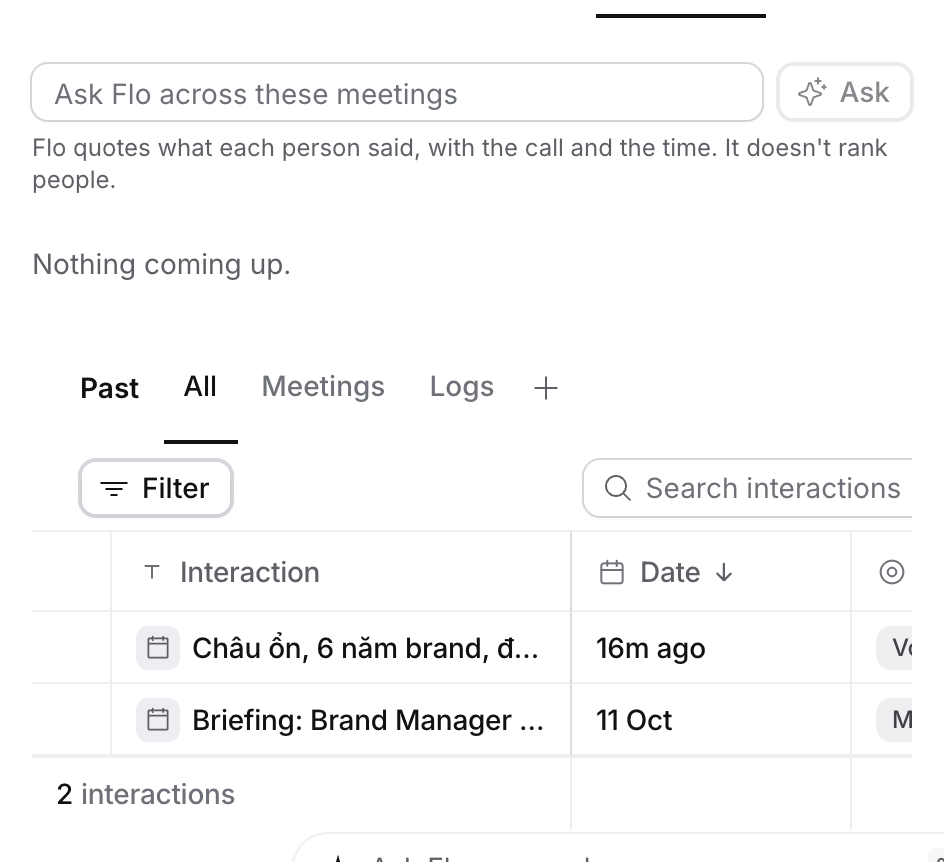 A meeting doesn't record which round it was, so the loop fills the rounds in the order the client interviews happened. A candidate's second CCM goes under the second round.
To ask a question across them, see [How to ask Flo across a record's meetings](/guides/how-to/ask-flo-across-meetings).
## The calendar
Select **Calendar** to see Day, Week, Agenda or Month. It opens the one you used last. Select **List** to come back. Press L for the list, and D, W, A or M for a calendar view.
## A meeting's page
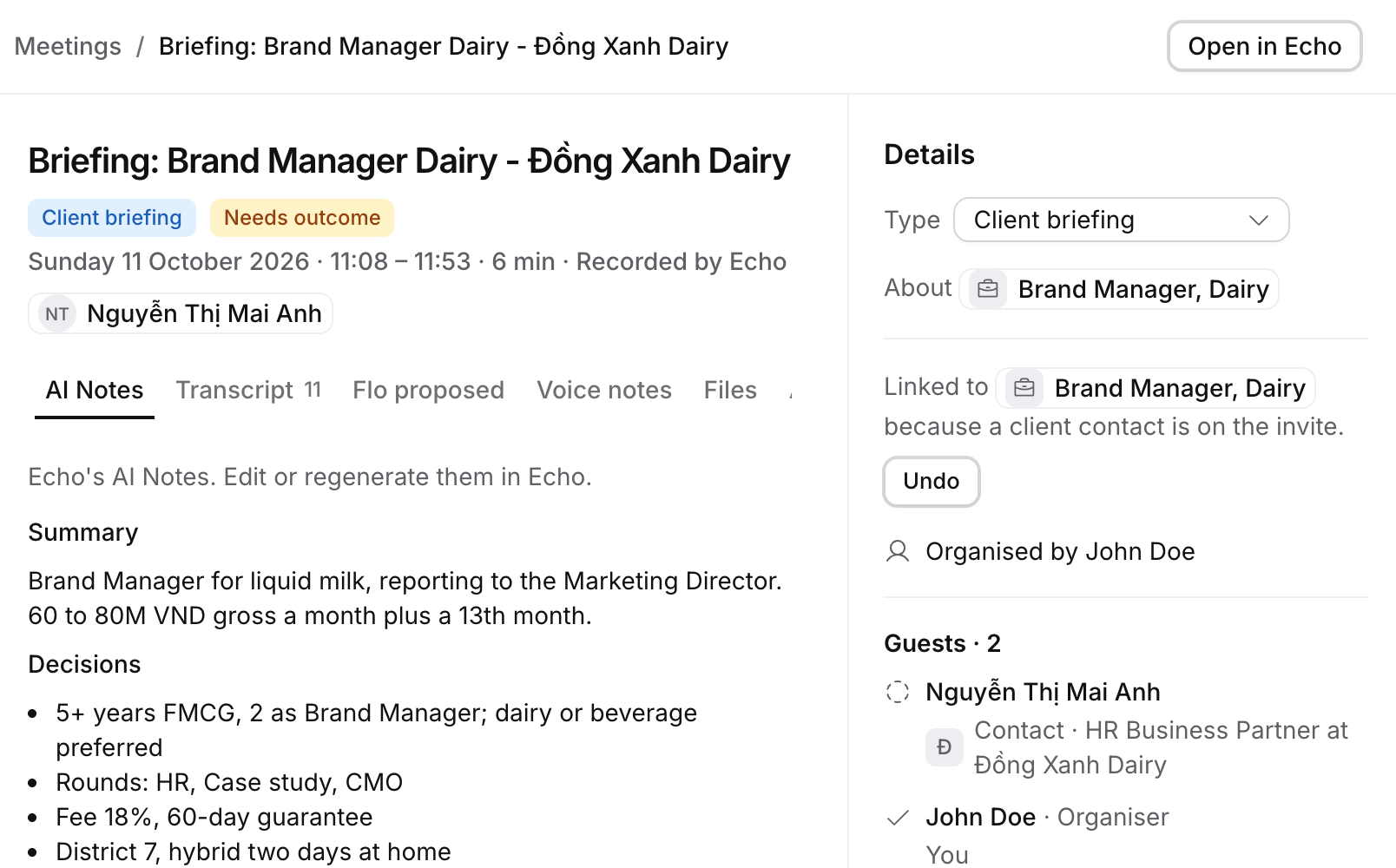
Select a meeting under **Past**, or **Open** (⌘ ↵) on a meeting's side sheet, to see it as a page. Before the call the page shows only **Brief**, **Files** and **Activity**.
A meeting doesn't record which round it was, so the loop fills the rounds in the order the client interviews happened. A candidate's second CCM goes under the second round.
To ask a question across them, see [How to ask Flo across a record's meetings](/guides/how-to/ask-flo-across-meetings).
## The calendar
Select **Calendar** to see Day, Week, Agenda or Month. It opens the one you used last. Select **List** to come back. Press L for the list, and D, W, A or M for a calendar view.
## A meeting's page
Select a meeting under **Past**, or **Open** (⌘ ↵) on a meeting's side sheet, to see it as a page. Before the call the page shows only **Brief**, **Files** and **Activity**.
 | Tab | What it shows |
| - | - |
| **AI Notes** | Echo's notes on the call. Edit or regenerate them in Echo. |
| **Transcript** | Who said what and when. **Find in transcript** marks every match. |
| **Flo proposed** | The changes Flo found in the call, waiting for you to approve, and the outcome. See [How to file a recording](/guides/how-to/file-a-call). |
| **Voice notes** | Voice logs you recorded about this call. |
| **Files** | The files of the record the meeting is about. Upload one here and it lands on that record. |
| **Brief** | Flo's brief from before the call. After the call it shows only when Flo wrote one. |
| **Activity** | What was logged about this meeting on its record: the outcome and the transcript. |
**Details** on the right holds the type, the record it's about, where it was and who came. A call with a client that has several live Jobs also shows **Which job is this about?**, with the suggested Job first. Hire suggests a Job, an outcome or a stage move from a call only when its decision model is sure; otherwise you choose. **Filed from this call** lists the changes you approved, each linked to its record.
* [How to prep with the meeting brief](/guides/how-to/prep-with-the-meeting-brief)
* [How to read a transcript](/guides/how-to/read-a-transcript)
**Open in Echo** opens the recording in the Echo app; the audio stays in Echo. A meeting's address stays the same after you log its outcome.
This documentation is built and hosted on [Mintlify](https://mintlify.com), a developer documentation platform.
| Tab | What it shows |
| - | - |
| **AI Notes** | Echo's notes on the call. Edit or regenerate them in Echo. |
| **Transcript** | Who said what and when. **Find in transcript** marks every match. |
| **Flo proposed** | The changes Flo found in the call, waiting for you to approve, and the outcome. See [How to file a recording](/guides/how-to/file-a-call). |
| **Voice notes** | Voice logs you recorded about this call. |
| **Files** | The files of the record the meeting is about. Upload one here and it lands on that record. |
| **Brief** | Flo's brief from before the call. After the call it shows only when Flo wrote one. |
| **Activity** | What was logged about this meeting on its record: the outcome and the transcript. |
**Details** on the right holds the type, the record it's about, where it was and who came. A call with a client that has several live Jobs also shows **Which job is this about?**, with the suggested Job first. Hire suggests a Job, an outcome or a stage move from a call only when its decision model is sure; otherwise you choose. **Filed from this call** lists the changes you approved, each linked to its record.
* [How to prep with the meeting brief](/guides/how-to/prep-with-the-meeting-brief)
* [How to read a transcript](/guides/how-to/read-a-transcript)
**Open in Echo** opens the recording in the Echo app; the audio stays in Echo. A meeting's address stays the same after you log its outcome.
This documentation is built and hosted on [Mintlify](https://mintlify.com), a developer documentation platform.