> ## Documentation Index
> Fetch the complete documentation index at: https://docs.ascern.io/llms.txt
> Use this file to discover all available pages before exploring further.
# Connect your calendar
> Connect one or more Google Calendar or Microsoft 365 accounts so your meetings attach to the right records.
Connect your work calendar so your meetings link to your clients, candidates and Jobs.
In **Your account › Connections**, select **Connect**, choose your work account and approve. **Meetings** and **Get started** have the same buttons.
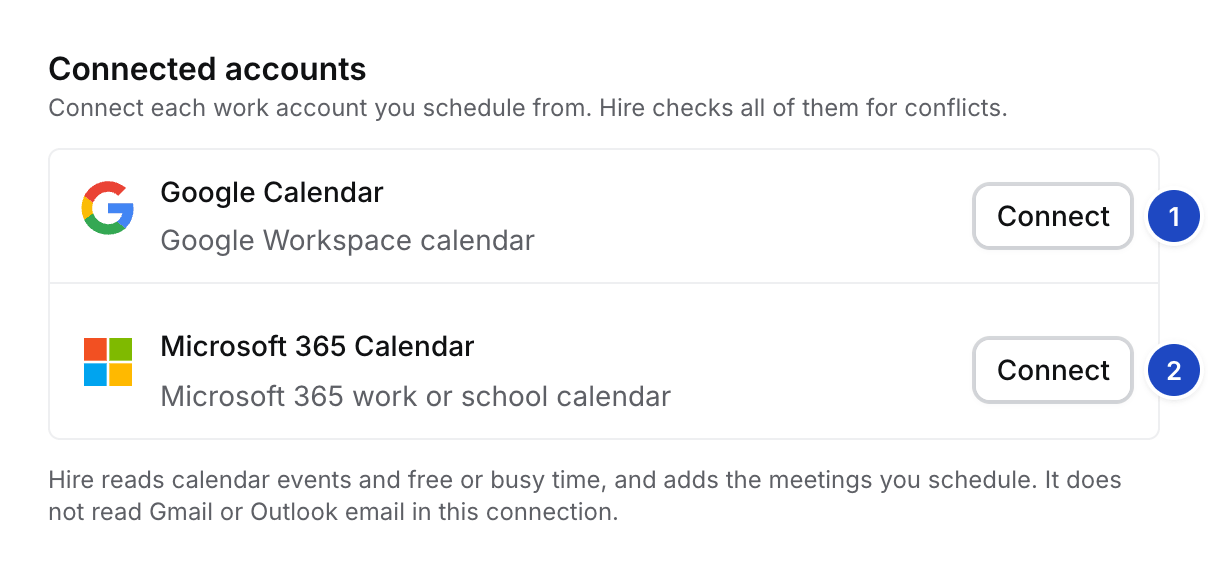 1. Google Calendar.
2. Microsoft 365 Calendar.
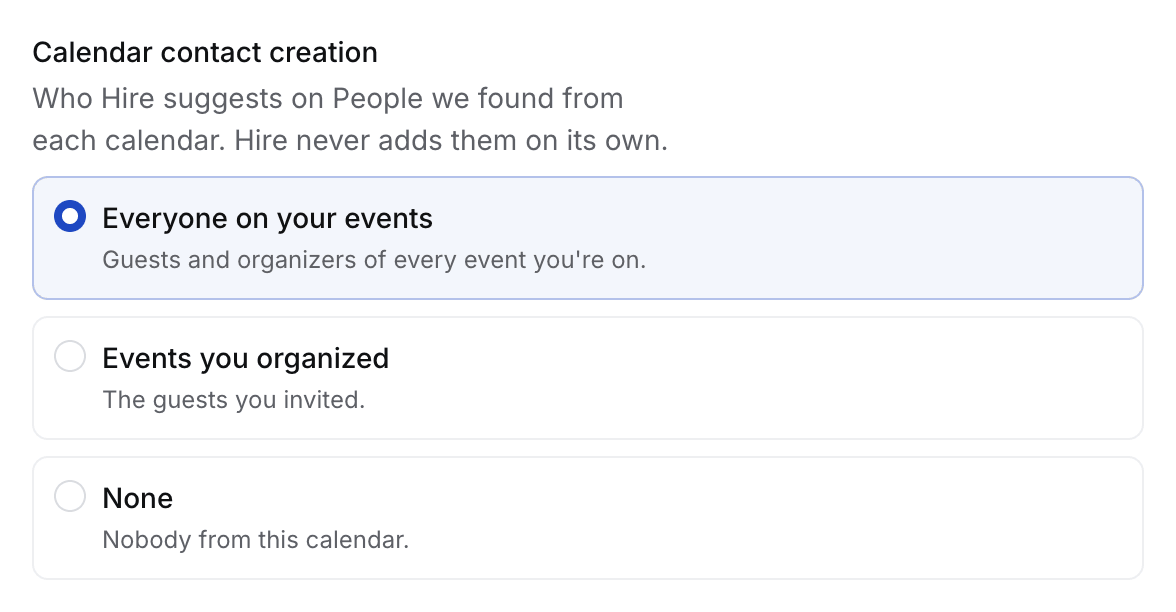
Under **Calendar contact creation**, keep **Everyone on your events** or narrow it. A change starts a new search at once.
1. Google Calendar.
2. Microsoft 365 Calendar.
Under **Calendar contact creation**, keep **Everyone on your events** or narrow it. A change starts a new search at once.
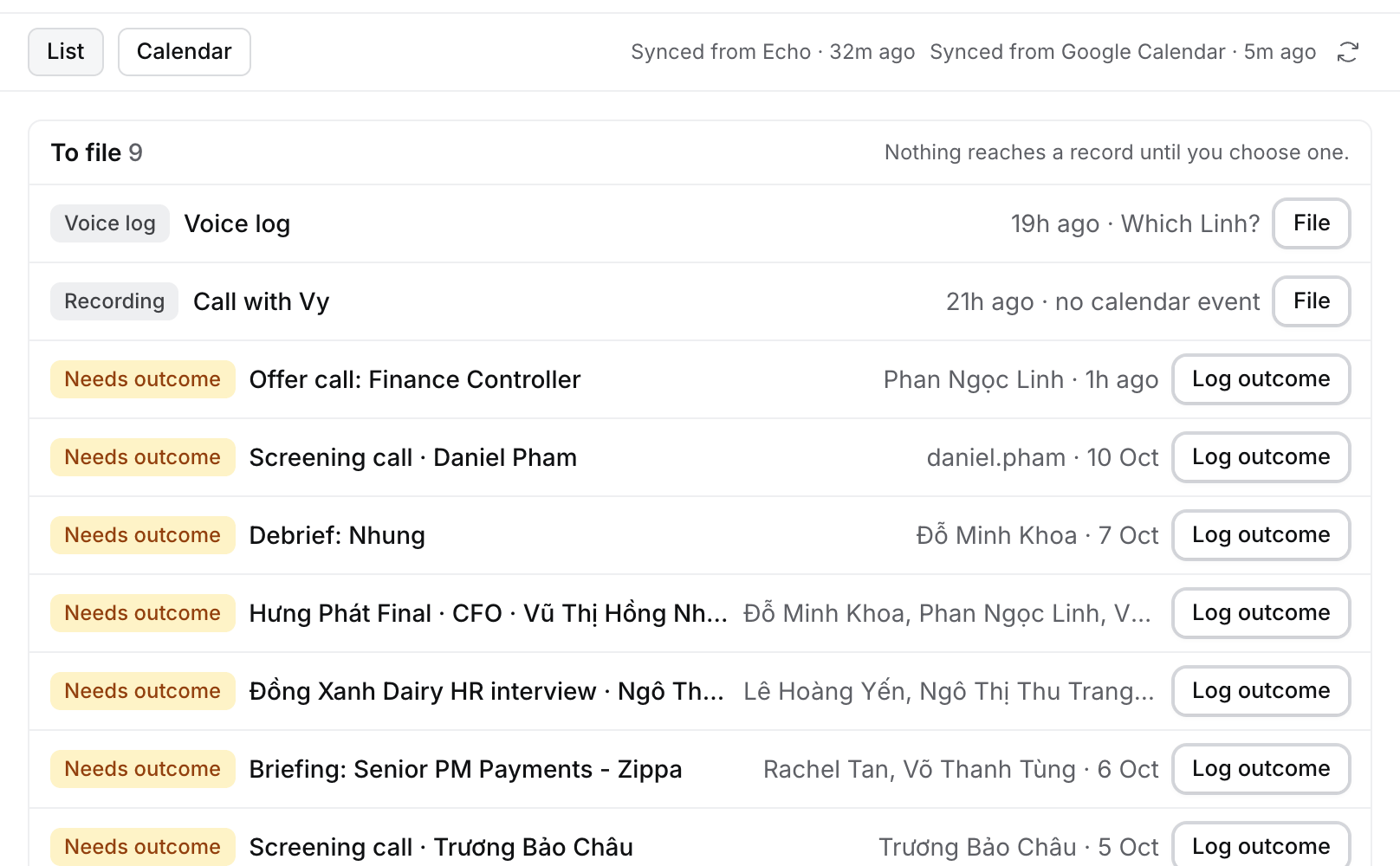
 Open **Meetings**. Events with people in Hire link to their records. Approve your guests on [People we found](/guides/how-to/review-people-we-found) to link the rest.
 ## What Hire reads
| Reads | Never reads |
| - | - |
| Events and their guests: the last 30 days and the next year first, then older events back up to five years | An event's notes, private events, your email through this connection |
| Free and busy time, for your availability | |
Hire only reads your calendar. It never creates, changes or deletes an event, so Google asks only for permission to see your calendars.
Events sync every 15 minutes. Press R on **Meetings** to sync now.
## Guests on People we found
A guest Hire doesn't have shows their **People we found** card on the meeting: **Suggested** with the card's own buttons (**Add as Contact** or **Add as Candidate**, and **Skip**), **Added**, or **Skipped**, with a link to **People we found**. A guest the people run hasn't reached yet has **Suggest**, which makes their card now. When the guest looks like someone already in Hire, the card offers **Add this email to them**, **Create a new person** or **Skip**, as on **People we found**.
Hire treats a person on Gmail, your calendar and Echo as one person. It matches an email address first. Then it asks Echo whether an address Hire already has belongs to the Echo person, which Echo answers by its private email fingerprint, so Hire only learns about addresses it already holds. Then it reads the guests of that person's own Echo meetings (all your Echo-recorded meetings until Echo lists them), and last their name with their company's domain. A match by name alone is only ever a card that asks.
## More than one account
Select **Add another account** under your connected accounts. **Check for conflicts** picks the calendars that block your availability.
An Owner or Admin can turn on **Create and edit meetings in Hire** in **Settings › General**. Then **New meeting** (C) and **Schedule meeting** on any record save a Draft in Hire. Hire doesn't send invites. Create the event in Google Calendar or Outlook, and Hire reads it on the next sync.
## If something looks wrong
* **Wrong account.** Select **Switch account**. The old one stays until the new one connects.
* **"Already connected for your agency."** A colleague connected that account here. Each account connects once per agency.
* **An event has no type.** It shows grey. Open it and save its outcome.
* **Connecting failed.** Select **Connect** again. Still failing? Tell Skillflo the time it happened.
This documentation is built and hosted on [Mintlify](https://mintlify.com), a developer documentation platform.
## What Hire reads
| Reads | Never reads |
| - | - |
| Events and their guests: the last 30 days and the next year first, then older events back up to five years | An event's notes, private events, your email through this connection |
| Free and busy time, for your availability | |
Hire only reads your calendar. It never creates, changes or deletes an event, so Google asks only for permission to see your calendars.
Events sync every 15 minutes. Press R on **Meetings** to sync now.
## Guests on People we found
A guest Hire doesn't have shows their **People we found** card on the meeting: **Suggested** with the card's own buttons (**Add as Contact** or **Add as Candidate**, and **Skip**), **Added**, or **Skipped**, with a link to **People we found**. A guest the people run hasn't reached yet has **Suggest**, which makes their card now. When the guest looks like someone already in Hire, the card offers **Add this email to them**, **Create a new person** or **Skip**, as on **People we found**.
Hire treats a person on Gmail, your calendar and Echo as one person. It matches an email address first. Then it asks Echo whether an address Hire already has belongs to the Echo person, which Echo answers by its private email fingerprint, so Hire only learns about addresses it already holds. Then it reads the guests of that person's own Echo meetings (all your Echo-recorded meetings until Echo lists them), and last their name with their company's domain. A match by name alone is only ever a card that asks.
## More than one account
Select **Add another account** under your connected accounts. **Check for conflicts** picks the calendars that block your availability.
An Owner or Admin can turn on **Create and edit meetings in Hire** in **Settings › General**. Then **New meeting** (C) and **Schedule meeting** on any record save a Draft in Hire. Hire doesn't send invites. Create the event in Google Calendar or Outlook, and Hire reads it on the next sync.
## If something looks wrong
* **Wrong account.** Select **Switch account**. The old one stays until the new one connects.
* **"Already connected for your agency."** A colleague connected that account here. Each account connects once per agency.
* **An event has no type.** It shows grey. Open it and save its outcome.
* **Connecting failed.** Select **Connect** again. Still failing? Tell Skillflo the time it happened.
This documentation is built and hosted on [Mintlify](https://mintlify.com), a developer documentation platform.