> ## Documentation Index
> Fetch the complete documentation index at: https://docs.ascern.io/llms.txt
> Use this file to discover all available pages before exploring further.
# Get started
> The six rows of Get started on Today: connect Gmail, your calendar and Echo, review the people Hire finds, import your work, invite your team.
**Get started** sits at the top of Today until every row is done. Its header says how far you are, such as **1 of 6 done**. The next row is highlighted and has the one blue button. **Setup guide** opens this page at that row. Invited? Follow your invitation email first ([Join your agency](/guides/tutorials/join-your-agency)).
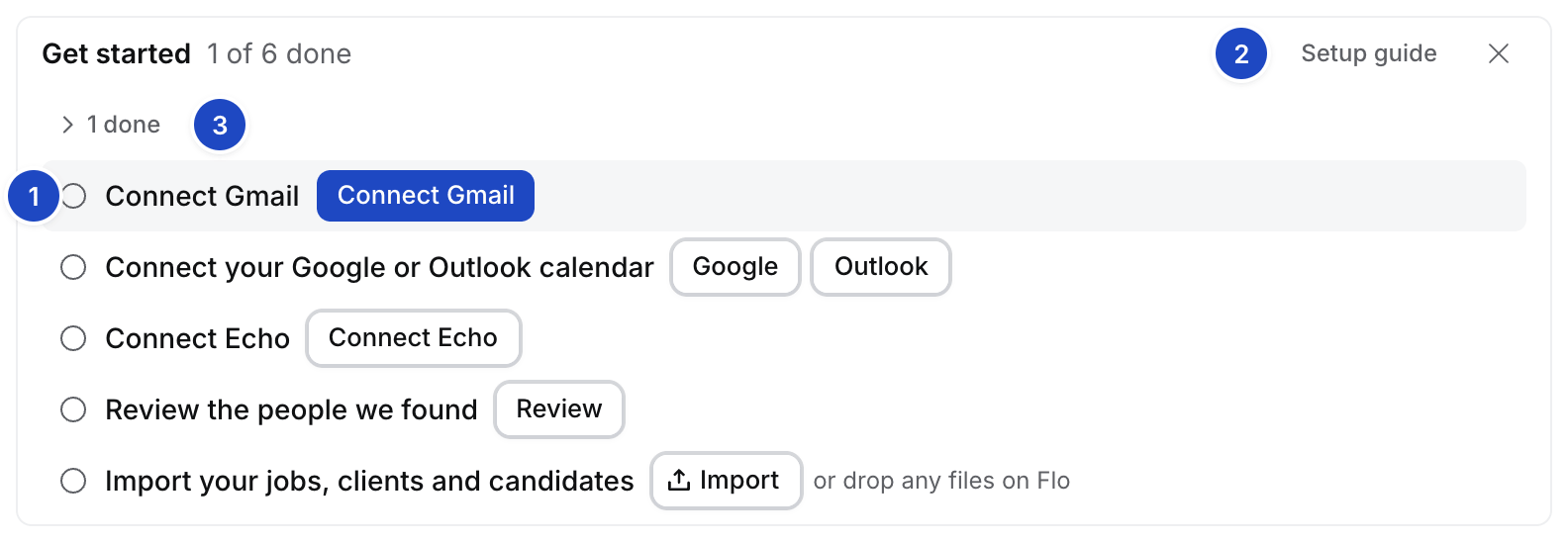 1. **Next row.** The step to do now.
2. **Setup guide.** Opens this page at that step.
3. **N done.** The done rows, folded. Select it to show them, and **Hide done** to fold them again.
A done row links to where it lives. Select **×** to hide the card; **Finish setup** brings it back.
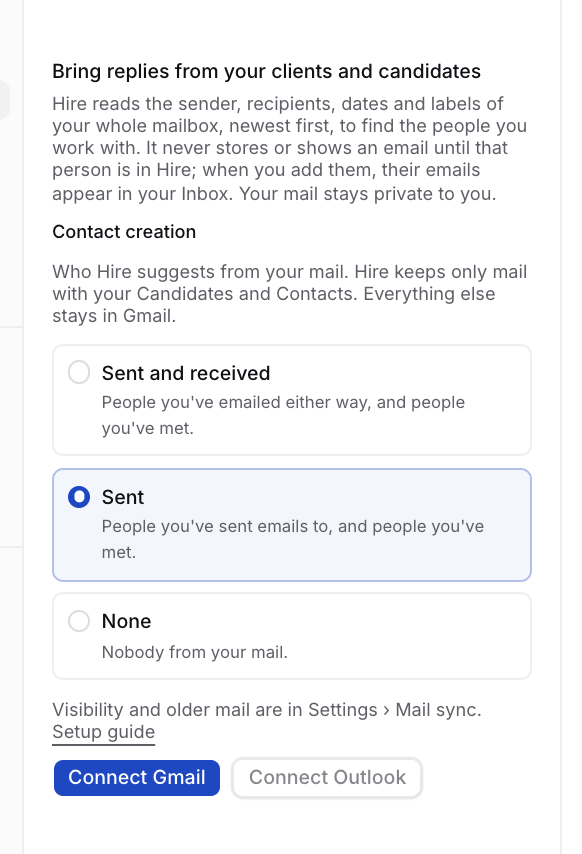
Select **Connect Gmail**. On the Inbox's connect card, keep **Contact creation** on **Sent** and select **Connect Gmail**. Google's screen names Composio, Hire's mail provider. Done shows **Connected · Open Inbox**, or how far Hire has read your older mail.
1. **Next row.** The step to do now.
2. **Setup guide.** Opens this page at that step.
3. **N done.** The done rows, folded. Select it to show them, and **Hide done** to fold them again.
A done row links to where it lives. Select **×** to hide the card; **Finish setup** brings it back.
Select **Connect Gmail**. On the Inbox's connect card, keep **Contact creation** on **Sent** and select **Connect Gmail**. Google's screen names Composio, Hire's mail provider. Done shows **Connected · Open Inbox**, or how far Hire has read your older mail.
 Select **Google** or **Outlook** and approve. Your meetings link to your clients and candidates. Done shows **Connected · Open Meetings**.
Select **Connect Echo** and approve. Recordings land on the meeting they came from. Done shows **Connected · Open Meetings**.
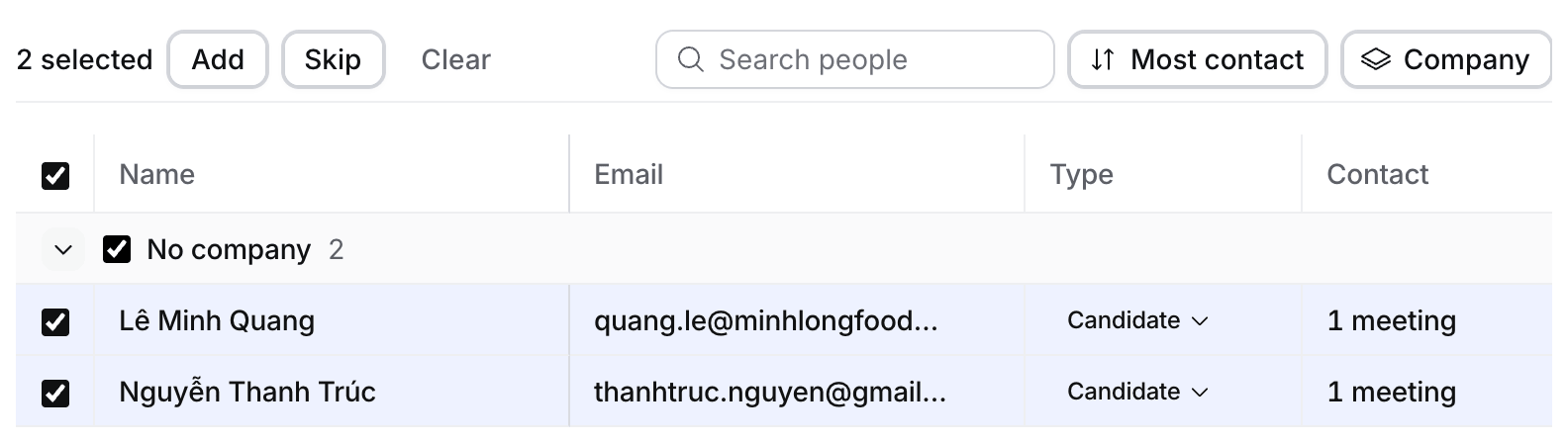
While Hire reads your connections, the row says **Finding people…** with each source's progress. Then it says **Review 2 people we found** and **2 people found · 6 not suggested: 4 newsletters, 1 your addresses, 1 colleagues · See all**.
Select **Google** or **Outlook** and approve. Your meetings link to your clients and candidates. Done shows **Connected · Open Meetings**.
Select **Connect Echo** and approve. Recordings land on the meeting they came from. Done shows **Connected · Open Meetings**.
While Hire reads your connections, the row says **Finding people…** with each source's progress. Then it says **Review 2 people we found** and **2 people found · 6 not suggested: 4 newsletters, 1 your addresses, 1 colleagues · See all**.
 1. **Not suggested.** People Hire left out: newsletters, automated senders, your own addresses and the like, the three biggest groups first. **See all** opens **People we found › Hidden**, where **Suggest anyway** brings one back.
2. **Review.** Opens **People we found**: one table, grouped by company. Tick people, or a company's box for everyone there, then select **Add**, **Skip** or **Not a client** above the table ([how](/guides/how-to/review-people-we-found)).
3. **5 done.** The rows you have done.
Done shows **Reviewed · People we found**.
1. **Not suggested.** People Hire left out: newsletters, automated senders, your own addresses and the like, the three biggest groups first. **See all** opens **People we found › Hidden**, where **Suggest anyway** brings one back.
2. **Review.** Opens **People we found**: one table, grouped by company. Tick people, or a company's box for everyone there, then select **Add**, **Skip** or **Not a client** above the table ([how](/guides/how-to/review-people-we-found)).
3. **5 done.** The rows you have done.
Done shows **Reviewed · People we found**.
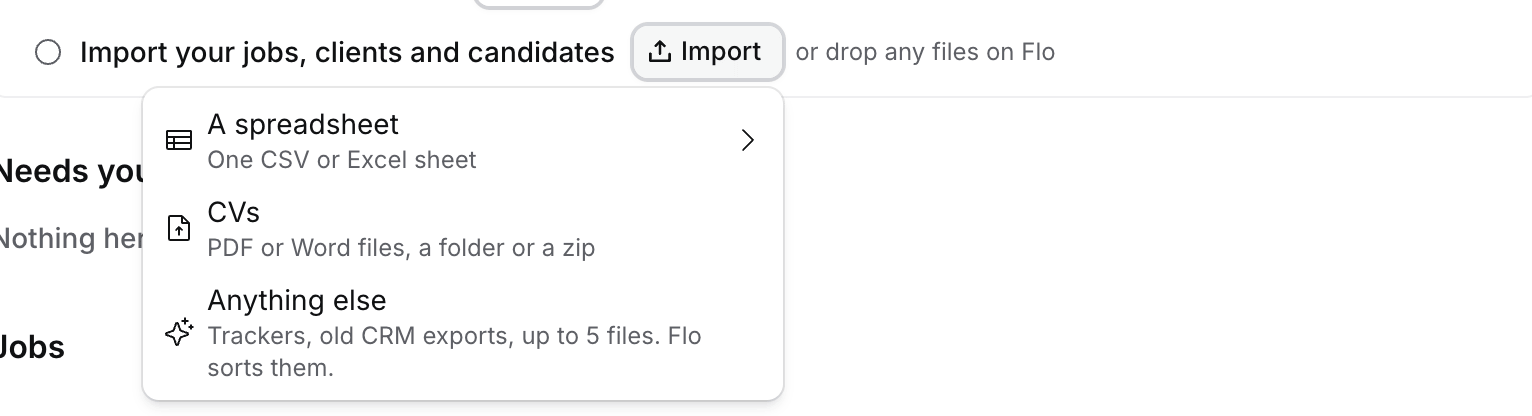
 Select **Import**, then one of:
* **A spreadsheet.** One CSV or Excel sheet into Companies, Contacts or Candidates.
* **CVs.** PDF or Word files, a folder or a zip. Each CV becomes a candidate.
* **Anything else.** Trackers and old CRM exports, up to five files. Flo plans the import with you ([Bring your people in](/guides/tutorials/bring-your-people-in)).
Or drop files on the row, or select **drop any files on Flo** to pick them in Flo. Done shows **Imported · Open Jobs**.
Select **Import**, then one of:
* **A spreadsheet.** One CSV or Excel sheet into Companies, Contacts or Candidates.
* **CVs.** PDF or Word files, a folder or a zip. Each CV becomes a candidate.
* **Anything else.** Trackers and old CRM exports, up to five files. Flo plans the import with you ([Bring your people in](/guides/tutorials/bring-your-people-in)).
Or drop files on the row, or select **drop any files on Flo** to pick them in Flo. Done shows **Imported · Open Jobs**.
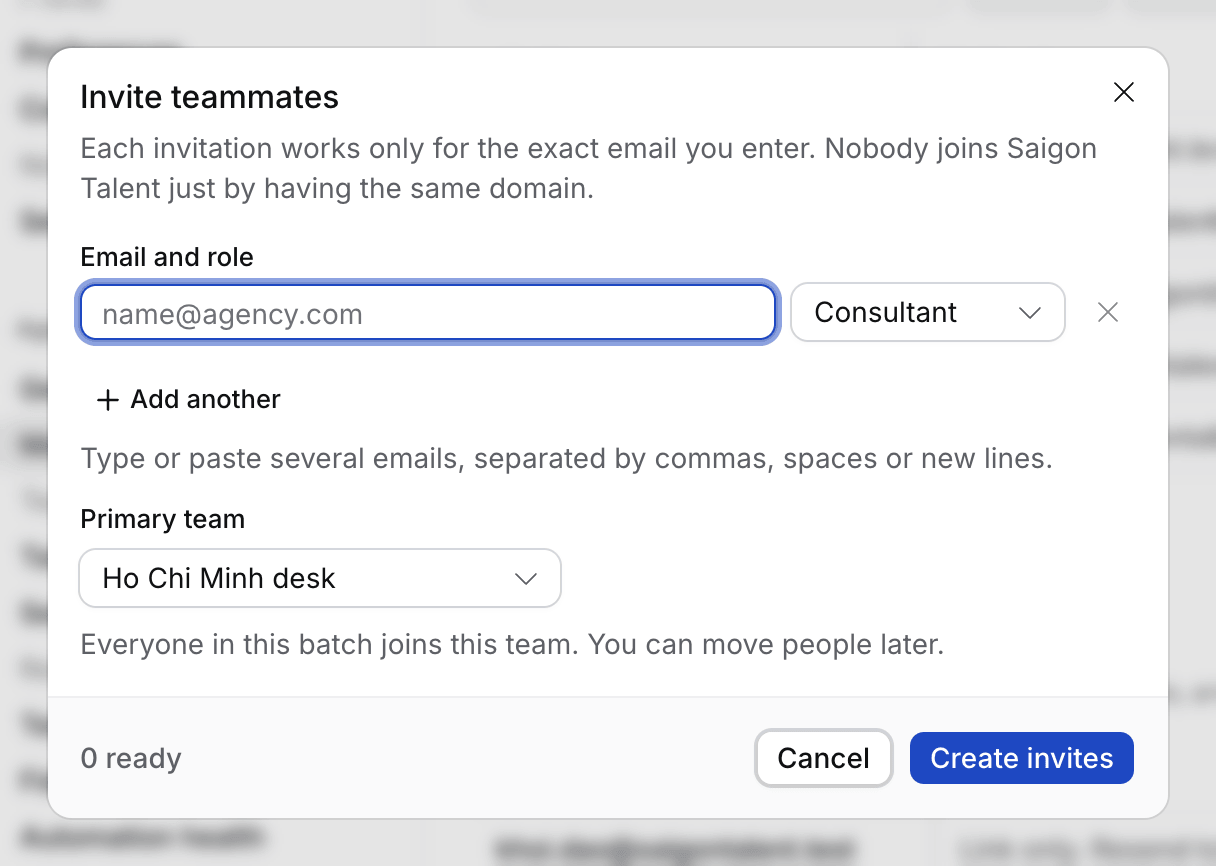
 Owners only. Select **Invite teammates**, then enter their emails in **Settings › Members**. Each consultant connects their own accounts. Done shows the number of teammates.
 Hire keeps mail only with people in Hire, and your mail stays private to you. See [Where your data lives](/guides/explanation/where-your-data-lives).
## Next
* [Your first job](/guides/tutorials/first-job): from a JD or a briefing call to your first shortlist.
* [A morning in Hire](/guides/tutorials/a-morning-in-hire): Today, **Needs you** and the Morning brief.
This documentation is built and hosted on [Mintlify](https://mintlify.com), a developer documentation platform.
Hire keeps mail only with people in Hire, and your mail stays private to you. See [Where your data lives](/guides/explanation/where-your-data-lives).
## Next
* [Your first job](/guides/tutorials/first-job): from a JD or a briefing call to your first shortlist.
* [A morning in Hire](/guides/tutorials/a-morning-in-hire): Today, **Needs you** and the Morning brief.
This documentation is built and hosted on [Mintlify](https://mintlify.com), a developer documentation platform.