> ## Documentation Index
> Fetch the complete documentation index at: https://docs.ascern.io/llms.txt
> Use this file to discover all available pages before exploring further.
# How Flo approvals and Undo work
> What Flo does on its own, what waits for you, and how to take a change back.
Flo uses the same actions as Hire's buttons, with the same permissions as you. What happens next depends on the change.
## Three kinds of action
| Kind | What you see | Example |
| - | - | - |
| Read | An answer, a table or cards | "Which jobs have no CVs sent?" |
| A change you asked for | A receipt with **Undo** | "Set the fee to 20%." |
| A change that needs approval | A row with **Approve** and **Deny**, decided in **Tasks › To review** | Progressing applicants, importing sheets |
A receipt lists each field Flo changed, with the value before and after, the way the table shows it. Activity on the record names Flo and you.
## Changes to approve
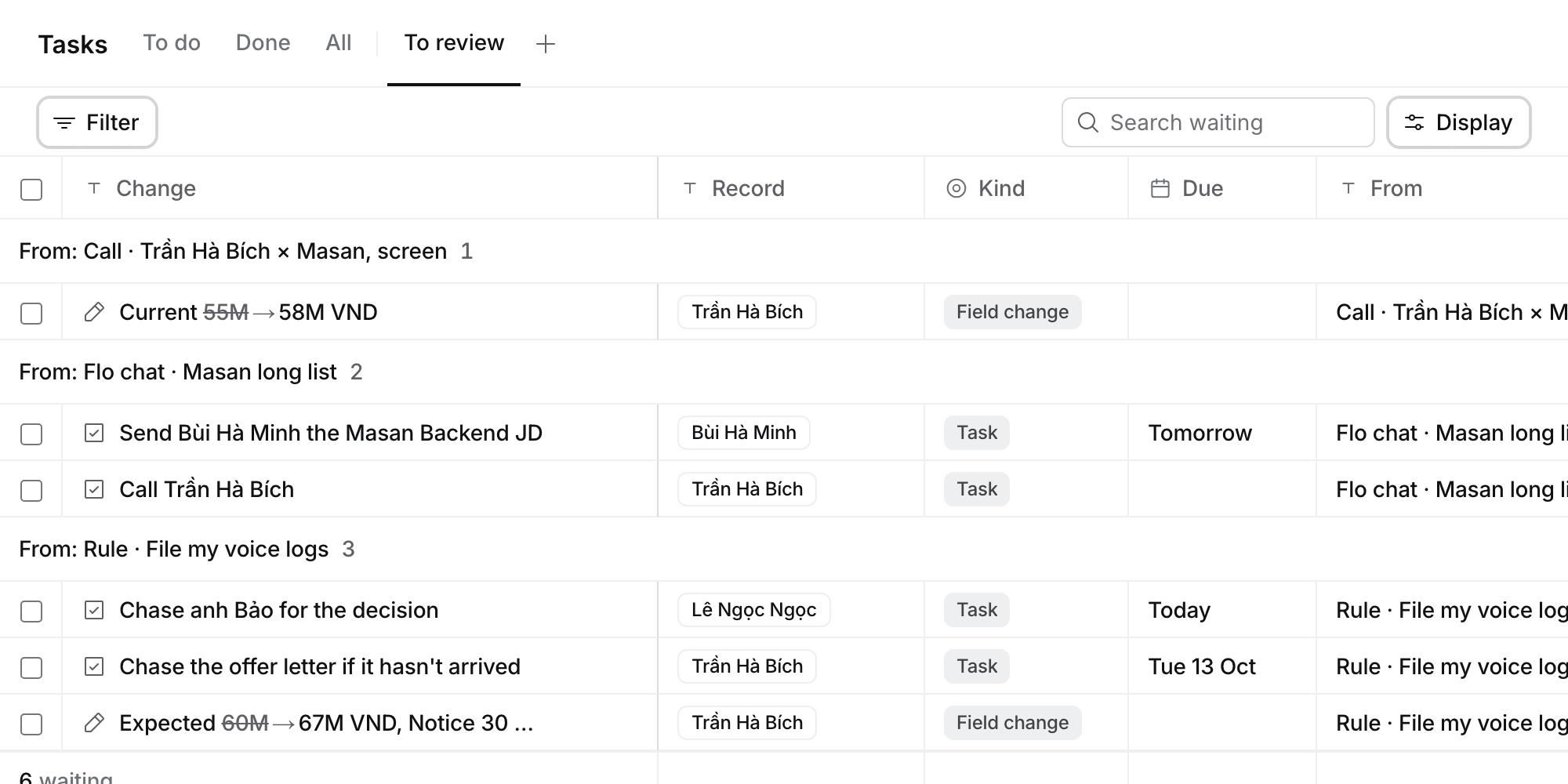
A change that needs approval shows as a row: what changes, on which record, and old → new for a field, with amounts in short form (67M → 70M VND). Nothing changes until you approve it. **Deny** decides in one click. An approved change with a plain inverse offers **Undo**. A change from your chat with Flo waits an hour. Changes from Rules, Log activity and a finished call wait up to seven days. A change says when it expires only in its last two days.
A change that can't be undone, such as a merge, is never ticked and never approved by a key. Approve it on its own.
## Tasks › To review
**Tasks › To review** is where you decide every change that waits for you. It's a table like the others in Hire, grouped by where each change came from (a Rule, a log, a call or a Flo chat), with **Filter**, search, **Display** and your own Views.
* Tick rows, then select **Approve N** or **Deny** in the bar above the table.
* Each decided row stays in the table, with its outcome, until you leave the page: **Approved** and what it did, with **Undo** where it has one, or **Didn't work** and why, in red, with the fix where there is one, such as **Pick company**.
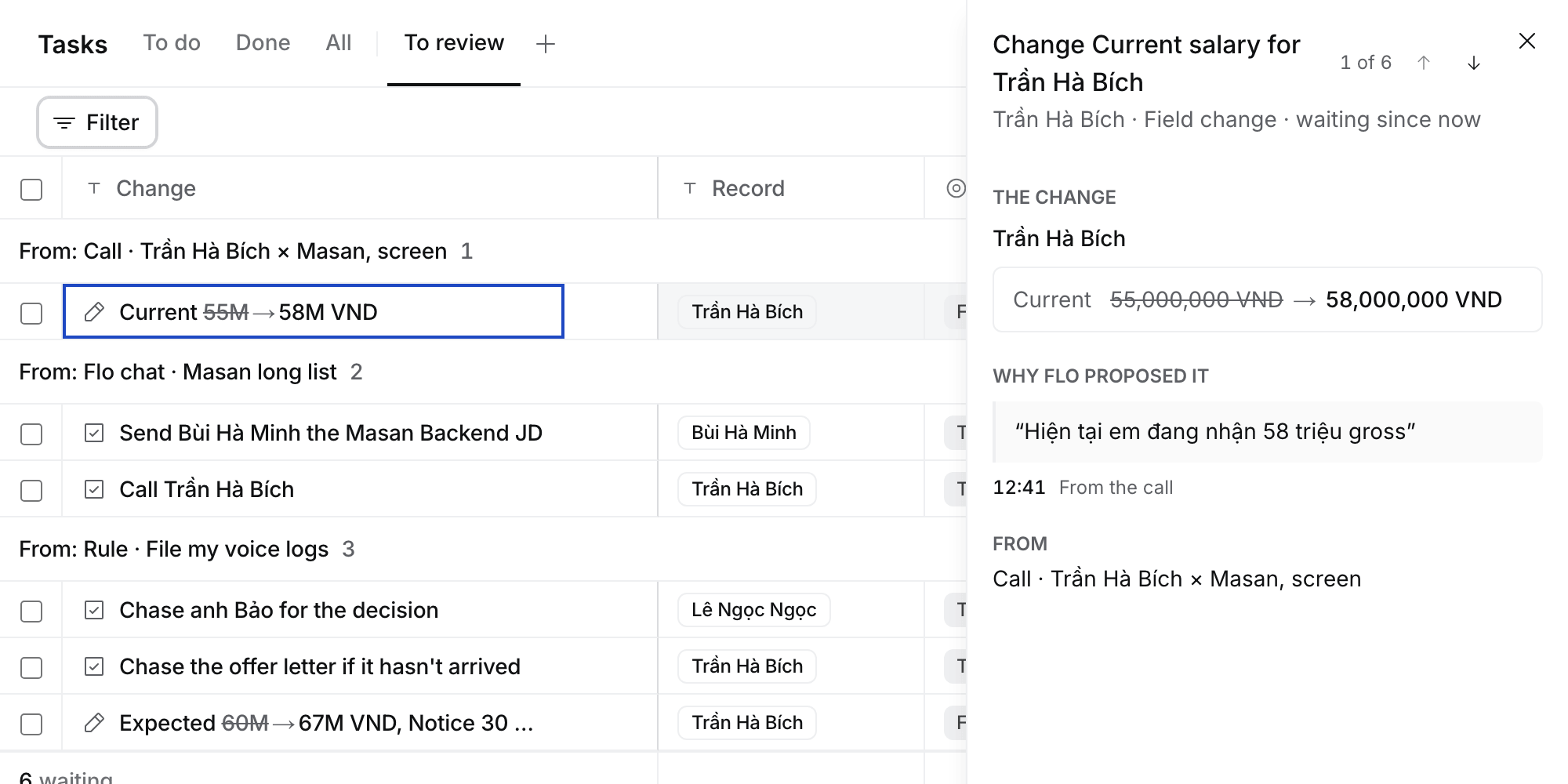
* Select a row to open it beside the table. It shows the whole change and **Why Flo proposed it**: the words Flo read, quoted from the call with the time they were said, from your log, or from your message. Flo's quote shows only when those exact words are in the source. Older changes say **No quote saved** and link to where they came from.
* In the open change, select **Approve**, **Edit** to change a value first, or **Deny…** to say why. Flo reads the reason.
* Press J and K to move through the rows, Y to approve and N to deny.
 ## Where else changes show
The same rows, with **Approve** and **Deny**, show where you're working. Select a row to open it in To review.
* **Your chat with Flo**, under Flo's answer, with **Open in To review**. Once every change is decided, Flo carries on. When you deny one, Flo asks why.
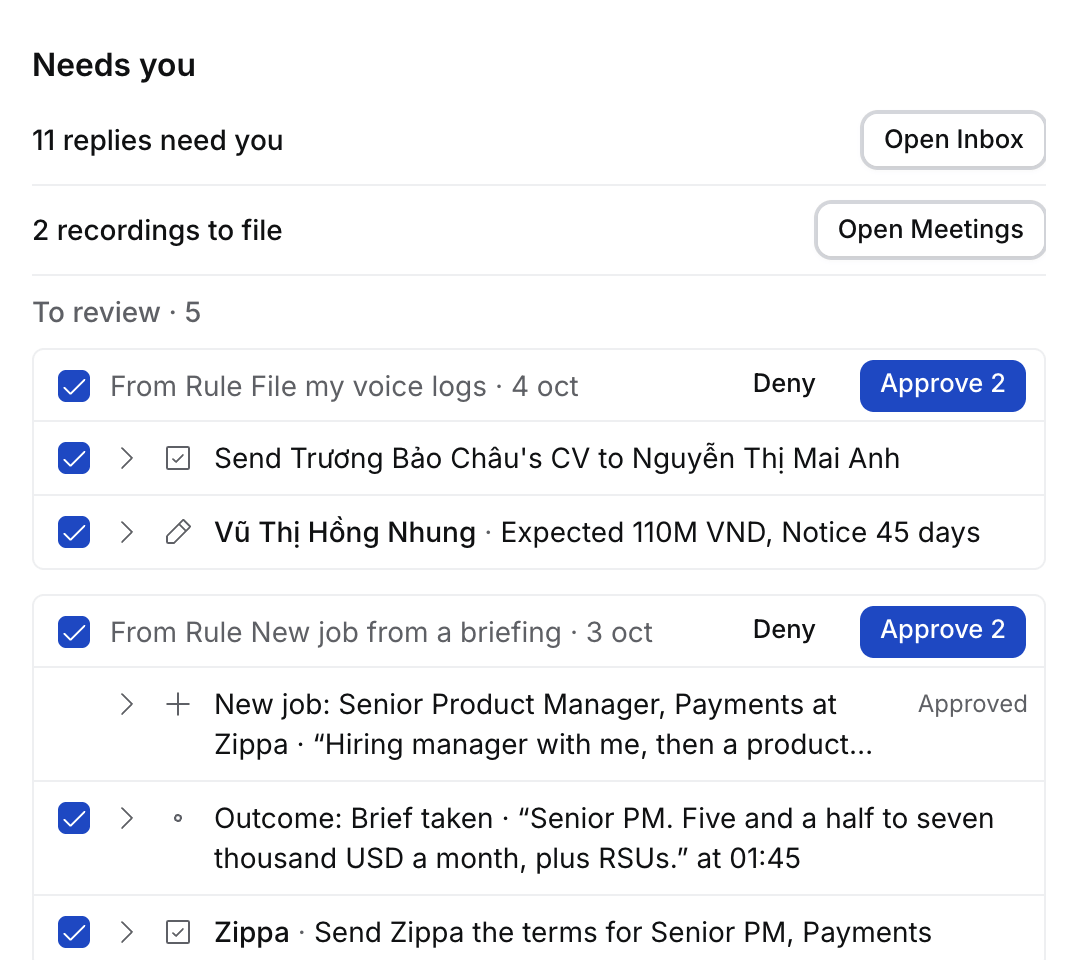
* **Today › Needs you**, under **To review**: five rows, then **Show all** opens Tasks › To review.
* **The record's page**, above its Activity, for changes about that record. A change about an application also shows on its candidate and its job.
* **Meetings**, where the header says how many changes your calls in view left, as **3 to review**.
* **The pill beside Ask Flo** counts them, as **4 to review**, and opens Tasks › To review.
## Where else changes show
The same rows, with **Approve** and **Deny**, show where you're working. Select a row to open it in To review.
* **Your chat with Flo**, under Flo's answer, with **Open in To review**. Once every change is decided, Flo carries on. When you deny one, Flo asks why.
* **Today › Needs you**, under **To review**: five rows, then **Show all** opens Tasks › To review.
* **The record's page**, above its Activity, for changes about that record. A change about an application also shows on its candidate and its job.
* **Meetings**, where the header says how many changes your calls in view left, as **3 to review**.
* **The pill beside Ask Flo** counts them, as **4 to review**, and opens Tasks › To review.
 ## A change to someone else's record
Only a Job's owner, their Manager or an Admin can change the Job, and only an Application's consultants, its Job's owner, their Managers or an Admin can change the Application. A Target works the same way as a Job: its owner, their Manager or an Admin changes it, and only their Manager or an Admin gives it to someone else. In the table and the Target sheet, a record you can't change shows read only. When you ask Flo to change one you can't, Flo says "Sent to Mai to approve." and the change waits in Mai's **To review**, under your name, for seven days. Approve runs the change as Mai.
A Rule's chat in Flo is named after the Rule.
## Undo
* **Receipts:** select **Undo** on the receipt, or press ⌘Z while the toast shows.
* **Imports:** **Undo import** works for 14 days, for the person who imported, Owners and Admins. See [Import your data with Flo](/guides/how-to/import-with-flo).
* **Stage moves and archive** in the app show Undo too.
## Questions
When Flo needs a choice, it asks with a question card: two to five options, Other and Skip. Background work pauses until you answer, for up to a week.
## What Flo never does
Flo never progresses or rejects an applicant on its own, and never sends email. Flo's activity log shows every turn and each step it took. Everyone reads their own turns in full in **Your account › My Flo activity**. Owners and Admins also see every turn in the Agency in **Settings › Flo activity**: who, when, the tools, status, time and cost. What a colleague asked, what Flo read for them and what it answered stay private to that colleague. When you retry a turn, the try that failed stays in the list as its own row.
This documentation is built and hosted on [Mintlify](https://mintlify.com), a developer documentation platform.
## A change to someone else's record
Only a Job's owner, their Manager or an Admin can change the Job, and only an Application's consultants, its Job's owner, their Managers or an Admin can change the Application. A Target works the same way as a Job: its owner, their Manager or an Admin changes it, and only their Manager or an Admin gives it to someone else. In the table and the Target sheet, a record you can't change shows read only. When you ask Flo to change one you can't, Flo says "Sent to Mai to approve." and the change waits in Mai's **To review**, under your name, for seven days. Approve runs the change as Mai.
A Rule's chat in Flo is named after the Rule.
## Undo
* **Receipts:** select **Undo** on the receipt, or press ⌘Z while the toast shows.
* **Imports:** **Undo import** works for 14 days, for the person who imported, Owners and Admins. See [Import your data with Flo](/guides/how-to/import-with-flo).
* **Stage moves and archive** in the app show Undo too.
## Questions
When Flo needs a choice, it asks with a question card: two to five options, Other and Skip. Background work pauses until you answer, for up to a week.
## What Flo never does
Flo never progresses or rejects an applicant on its own, and never sends email. Flo's activity log shows every turn and each step it took. Everyone reads their own turns in full in **Your account › My Flo activity**. Owners and Admins also see every turn in the Agency in **Settings › Flo activity**: who, when, the tools, status, time and cost. What a colleague asked, what Flo read for them and what it answered stay private to that colleague. When you retry a turn, the try that failed stays in the list as its own row.
This documentation is built and hosted on [Mintlify](https://mintlify.com), a developer documentation platform.